
Server data from the Official MCP Registry
Manage AWS, Hetzner, OVH and SSH servers: status, logs, CloudWatch, IP bans, safe command exec.
About
Manage AWS, Hetzner, OVH and SSH servers: status, logs, CloudWatch, IP bans, safe command exec.
Security Report
Valid MCP server (1 strong, 1 medium validity signals). 5 known CVEs in dependencies (0 critical, 3 high severity) Package registry verified. Imported from the Official MCP Registry.
4 files analyzed · 6 issues found
Security scores are indicators to help you make informed decisions, not guarantees. Always review permissions before connecting any MCP server.
Permissions Required
This plugin requests these system permissions. Most are normal for its category.
How to Install
Add this to your MCP configuration file:
{
  "mcpServers": {
    "dev-servonaut-servonaut": {
      "args": [
        "servonaut"
      ],
      "command": "uvx"
    }
  }
}Documentation
View on GitHubFrom the project's GitHub README.
Servonaut
Your servers. Your terminal. Your AI agent. One TUI.
Manage AWS, Hetzner, OVH, and custom servers from one terminal — with a built-in AI assistant and MCP server.

Quick Install
Linux / macOS:
curl -fsSL https://github.com/zb-ss/servonaut/releases/latest/download/install.sh | bash
Windows (PowerShell):
irm https://github.com/zb-ss/servonaut/releases/latest/download/install.ps1 | iex
The scripts come from the latest stable release and install Servonaut from
PyPI with pipx. Every release
carries them with install-scripts_SHA256SUMS, to check a downloaded copy
before you run it.
Or install directly via pipx / pip:
pipx install servonaut
Desktop app (preview), Linux: download the .deb from
servonaut.dev/download, and see the
Linux desktop preview
notes before you install it.
Try a release candidate
Each release is published as a release candidate (for example 2.28.0rc1)
a few days before the stable release. Candidates are for people who want the
next release early and will report what goes wrong. pip and pipx install one
only when you ask for it.
# The newest candidate, with the install script
curl -fsSL https://github.com/zb-ss/servonaut/releases/latest/download/install.sh | bash -s -- --pre

# With pipx: a specific candidate, or the newest one
pipx install --force 'servonaut==2.28.0rc1'
pipx install --force 'servonaut>=0rc0'

# With pip
pip install --upgrade 'servonaut>=0rc0'

# Try one without changing your installation
pipx run --spec 'servonaut==2.28.0rc1' servonaut

# Go back to the newest stable release (your configuration is kept)
pipx install --force servonaut
On Windows, run $env:SERVONAUT_PRE = "1" before the PowerShell installer.
Avoid pip install --pre and pipx install --pip-args=--pre: they also
install pre-release versions of Servonaut's dependencies, and some of those
do not work with it.
While you run a candidate, the update check offers newer candidates and then the stable release. A stable installation is only ever offered stable releases. Please report problems in GitHub issues. Details: Release candidates.
Standalone CLI preview
Standalone console-only archives are being validated for Windows x64, macOS Intel and Apple Silicon, and Ubuntu x64. They are not published or downloadable yet. Until signed release installers are available, install Servonaut with pipx or pip.
Manual install from source:
git clone https://github.com/zb-ss/servonaut.git
cd servonaut
pipx install .
Set up with an AI agent
Prefer to let an AI agent do the whole thing? Paste this prompt into Claude Code, Cursor, or any coding assistant — it installs Servonaut, generates the config, and walks you through AWS / SSH / bastion / custom-server / AI-provider setup plus the MCP server.
Install and configure Servonaut, a TUI for managing servers (AWS EC2, OVHcloud, Hetzner Cloud, and custom SSH servers).

1. Install with all optional features: `pipx install 'servonaut[all]'`
   (bundles the MCP server + OVH/Hetzner SDKs + keyring; AI log analysis needs no extra. Use plain `pipx install servonaut` for a minimal install.)
2. Run `servonaut` once to generate ~/.servonaut/config.json
3. (Optional) If I have a Servonaut account, run `servonaut login` to unlock the hosted features: Servonaut AI (chat with my fleet, no local API key), config sync across machines, Memory Sync, and proactive monitoring (Findings). Servonaut works fully offline against my own credentials if I skip this.
4. Read ~/.servonaut/config.json and help me configure:
   - AWS regions to scan (default scans all, set `regions` array to limit)
   - Default SSH username (`default_username`, default "ec2-user")
   - Cache TTL (`cache_ttl_seconds`, default 3600)
   - Terminal emulator if not auto-detected (`terminal_emulator`)
5. If I use bastion/jump hosts, help me set up `connection_profiles` and `connection_rules`
6. If I have non-AWS servers, help me add them to `custom_servers`
7. If I use OVHcloud or Hetzner Cloud, help me add the API credentials so those instances merge into the fleet
8. For AI log analysis or chat with my own model (instead of Servonaut AI), help me configure `ai_provider` (openai/anthropic/gemini/ollama)
   - Each provider has its own key field (`openai_api_key`, `anthropic_api_key`, `gemini_api_key`, `ollama_api_key`); local Ollama needs none
   - Key fields support `$ENV_VAR` and `file:~/.secrets/key` syntax so secrets stay out of the config file
9. Install the MCP server into my coding agent: `servonaut --mcp-install claude` (or `cursor`, `windsurf`, `opencode`, `vscode`, `codex`, `agy`, `gemini`, `all`)
10. (Optional) To let AI agents/teammates reach this machine over the relay — and to run proactive Findings scans — start it with `servonaut connect`

After setup, launch with `servonaut` and walk me through the key features, including the Findings inbox if I enabled the hosted features.
Screenshots
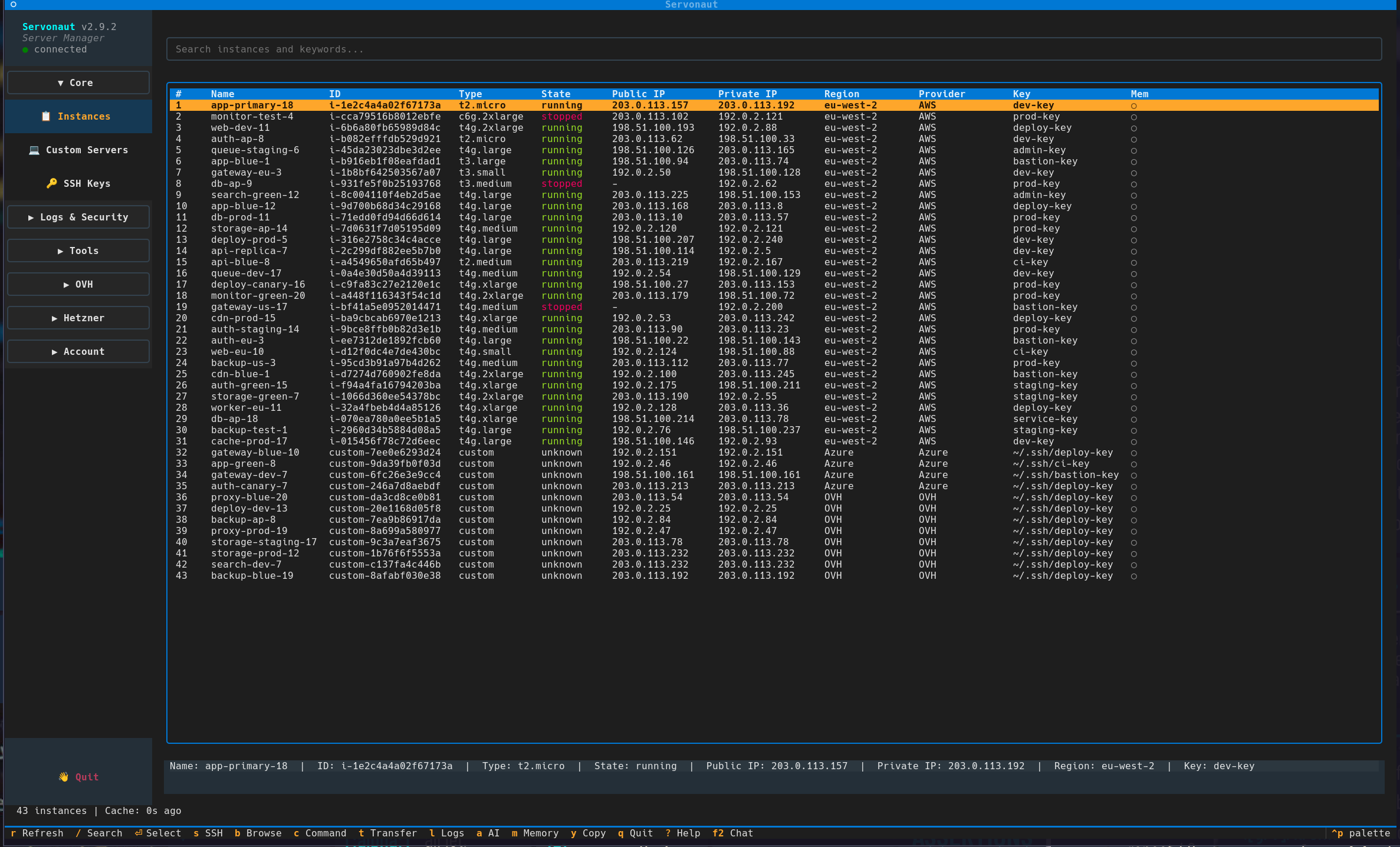 Instance list — AWS, Hetzner, OVH, and custom servers merged into one view
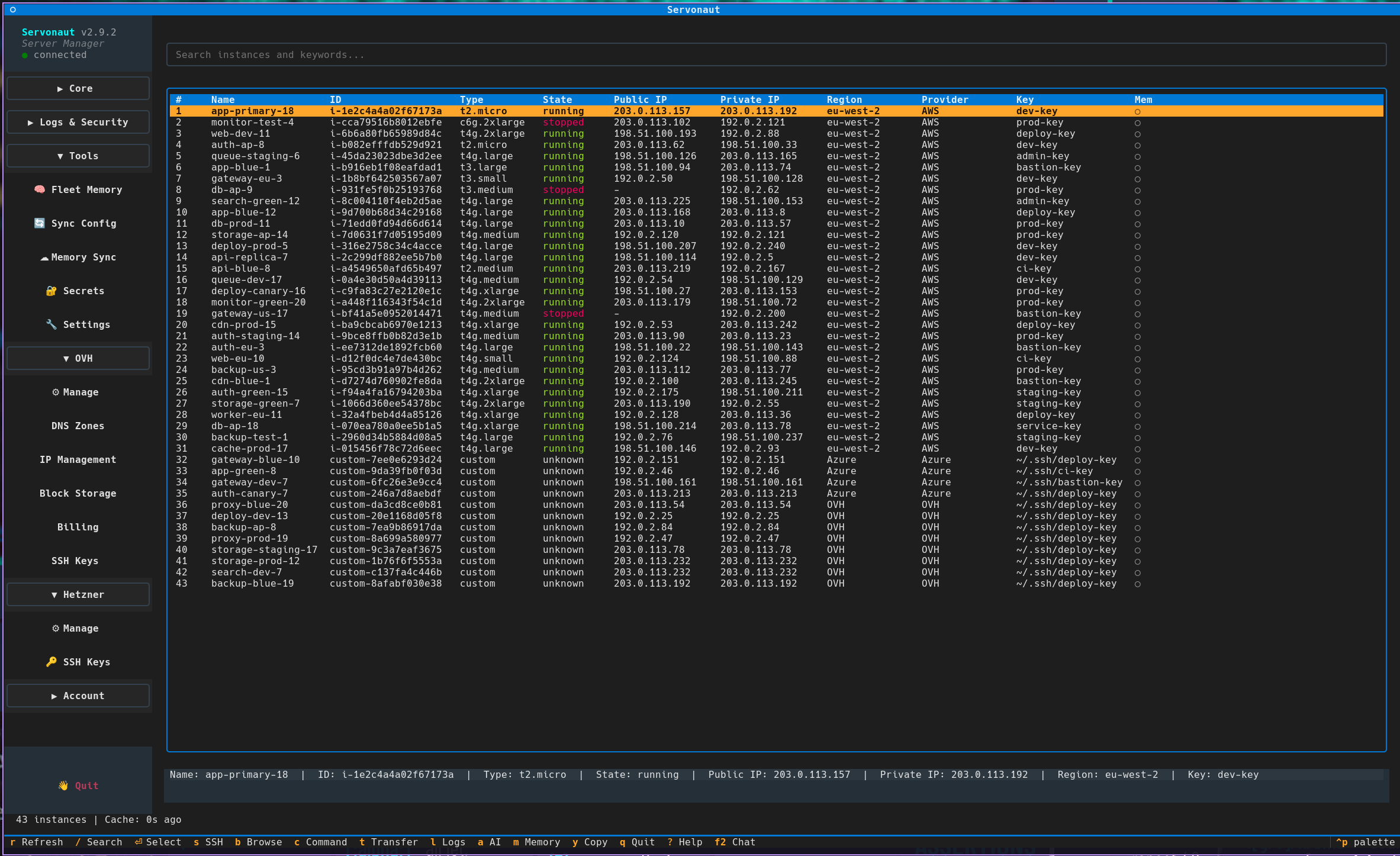 Sidebar reveals Fleet Memory, Memory Sync, Secrets, Settings, and per-provider management for OVH and Hetzner
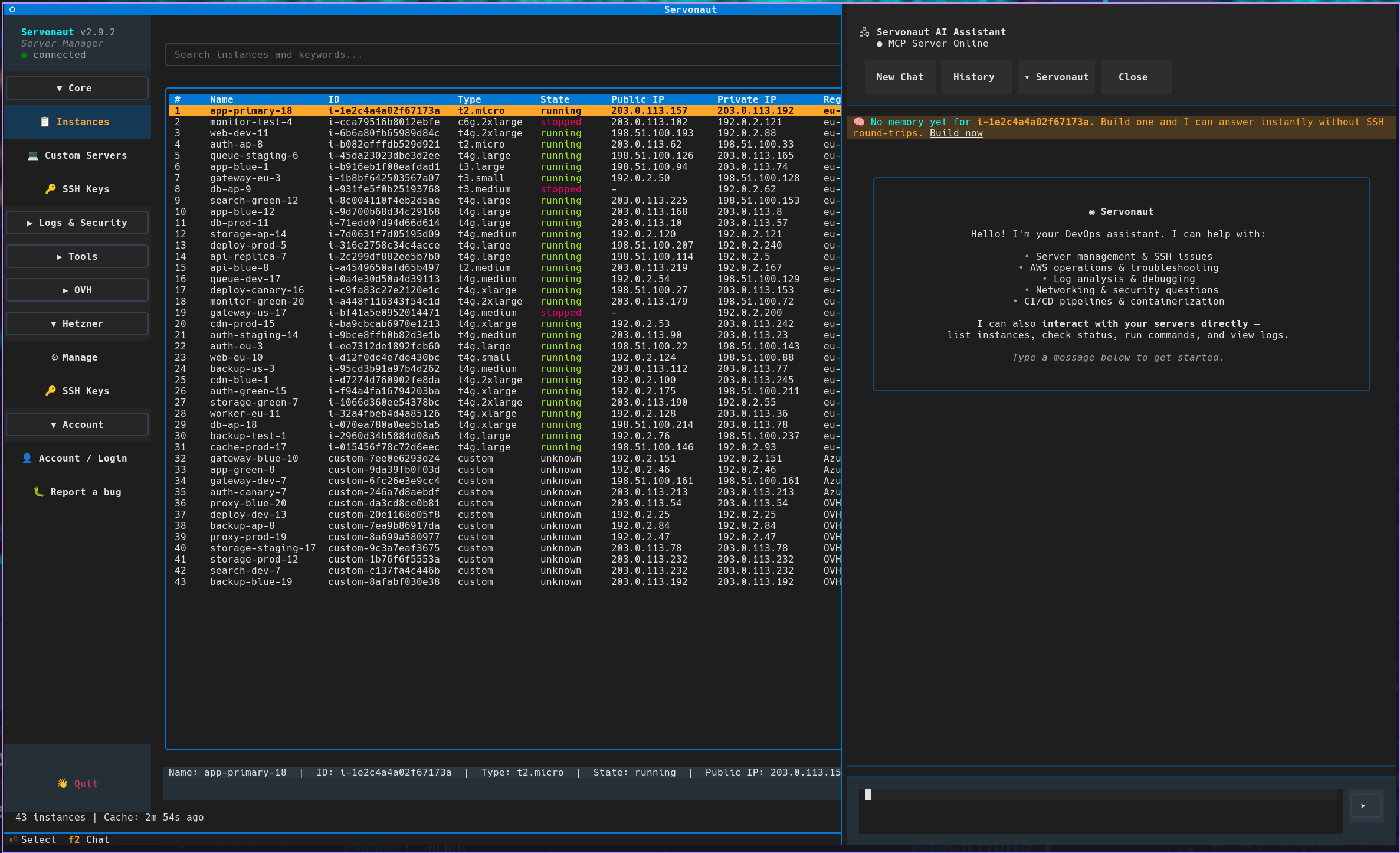 Built-in AI assistant with MCP server integration — chat with local providers or hosted Servonaut AI
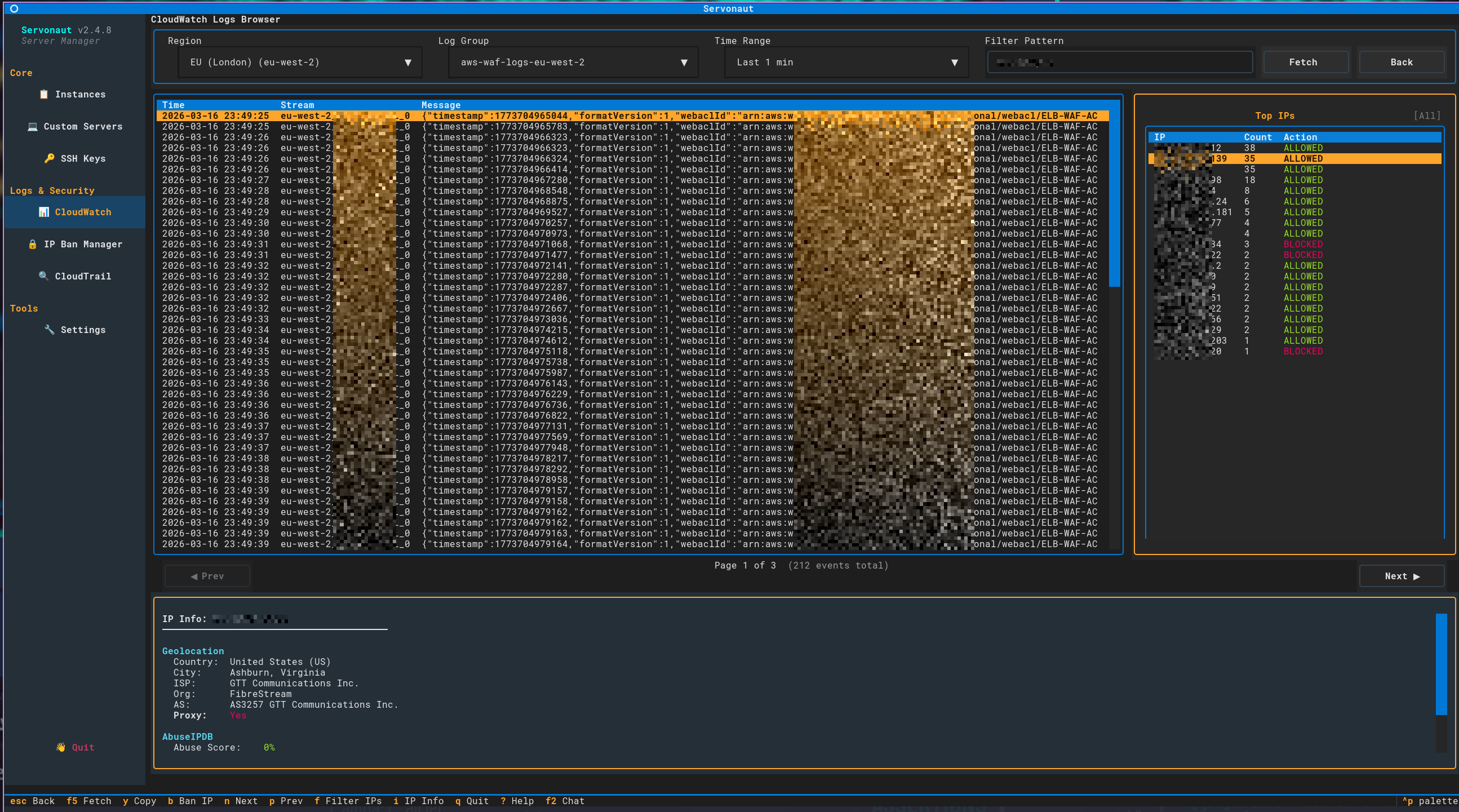 CloudWatch log browsing with Top IPs analysis, geolocation, and abuse scoring
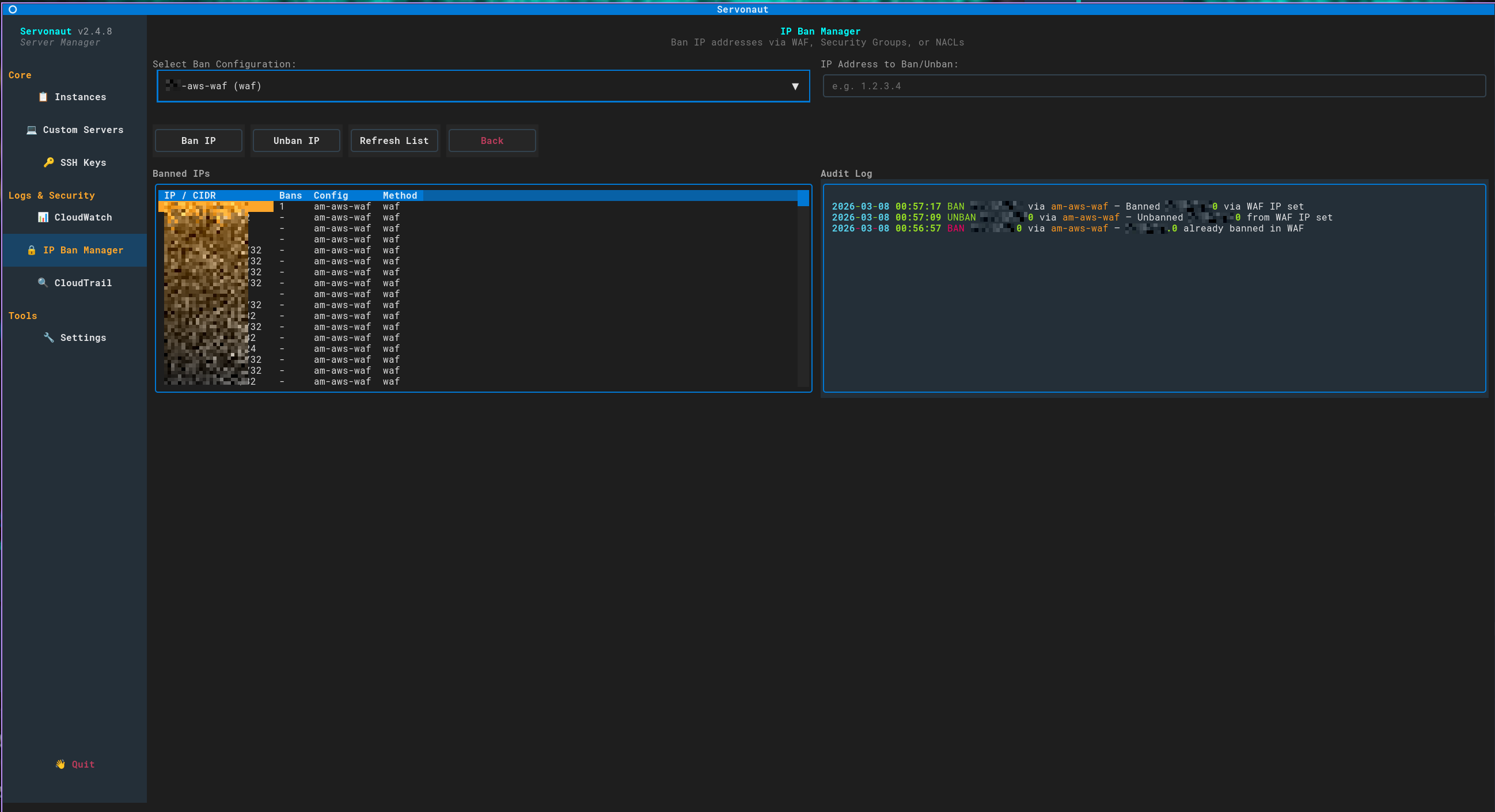 Ban/unban IPs via WAF, Security Groups, or NACLs with audit trail
All screenshots and the launch video were recorded with --demo active, which replaces real IPs, ARNs, paths, and secrets with safe fake equivalents. See docs/demo-mode.md for what is redacted and how to use it.
Features
Badges: Solo+ = included with paid Solo/Teams plans.
Core & connectivity
- Interactive TUI — mouse + keyboard, powered by Textual.
- Multi-provider fleet — AWS EC2, OVHcloud (dedicated / VPS / Public Cloud), Hetzner Cloud, and custom servers from any provider (DigitalOcean, on-prem, …) — listed and searchable in one view across all regions.
- Multiple accounts per provider — several AWS accounts (named profiles), Hetzner projects and OVH accounts in the same fleet; servers show as
account/nameand every action runs in the server's own account. → docs - Per-instance dashboard — click a server for a Server Actions view: a memory snapshot (OS, disk, web stack, databases, runtimes, containers) plus an opt-in live resource monitor (
L— CPU / RAM / load / disk / uptime, polled only while open). - SSH & SCP — one-key SSH in a new terminal window (auto-detected emulator); upload/download files and directories.
- Run remote commands — overlay panel with real-time streaming output, history, and saved favorites.
- Remote file browser — interactive file-tree navigation, inline in the dashboard or full-screen.
- Real-time log viewer — stream logs via
tail -fwith pause, search, and log switching. - Robust SSH — bastion / jump-server (ProxyJump / ProxyCommand), keepalives on by default (tunable), per-host
extra_ssh_optionsfor legacy boxes, and key auto-discovery. - SSH host-key checking — trust on first use: the first connection records a server's host key, and a later connection presenting a different key is refused, with the exact command that removes the old key once you have confirmed the change. → docs
Cloud provider management
- OVHcloud —
OVH → ⚙ Manage: create / start / stop / reboot / delete (Cloud / VPS / dedicated), a region-first create wizard with API-backed pricing, plus DNS, IP blocks & failover IPs, snapshots, block storage, and billing. - Hetzner Cloud —
Hetzner → ⚙ Manage: full lifecycle + project SSH-key registry, with an equivalent CLI (servonaut hetzner …). Auto-registers new servers. → docs
Observability & security
- Proactive monitoring — Findings (Solo+) — cloud-side detectors surface fleet issues (disk, failed services, slow queries, credential-scanning cross-referenced with fail2ban, container health, TLS expiry, pending updates) as triageable cards, with gated one-click remediation (server-signed preview → human confirm → verb-allowlisted executor; block IP or renew a cert). → guide
- CloudWatch Logs browser — log groups with Top-IPs analysis, IP geolocation, and AbuseIPDB lookups.
- CloudTrail browser — AWS CloudTrail events with region / time / event / user filters.
- IP ban manager — ban IPs via AWS WAF, Security Groups, or NACLs, with an audit trail.
- Keyword server scanning — search file contents across instances.
AI
- Servonaut AI (Solo+) — hosted AI gateway; chat with your fleet with no local API key. The model can tail logs, run commands (with confirmation), and triage incidents over the relay — credentials and SSH keys never leave the CLI. Quota inline /
servonaut ai quota. - Bring your own key — OpenAI / Anthropic / Gemini / Ollama keys configured per-provider in Settings → AI Provider (local Ollama needs none). All coexist with Servonaut AI, switchable per-session.
- Built-in AI chat — LLM assistant with tool-calling against your instances (the same MCP tool surface below).
- AI log analysis — analyze logs with OpenAI, Anthropic, Gemini, or Ollama, with cost estimation.
- Voice — dictate into the chat panel with
ctrl+t, have replies read aloud, or go fully hands-free with conversation mode (ctrl+n): the mic stays open between turns and replies are spoken — with optional barge-in (headphones mode) to interrupt a reply by talking over it. Transcription and speech synthesis run entirely on your machine, so audio never leaves the workstation. Opt-in — nothing is downloaded until you enable it in Settings. → docs
Memory & secrets
- Server memory — persistent per-server cache of OS / runtime / service / web-stack / log / database / container / git / disk facts; optional background fleet auto-scan. → docs
- Memory Sync (Solo+) — end-to-end-encrypted backup of fleet memory to servonaut.dev (X25519 + AES-256-GCM, your passphrase), with drift detection, cross-device history, and optional auto-sync.
☁ Memory Syncin the sidebar. - Database credential vault (Solo+) — scan a server for the DB credentials its apps already use, store the password in your secret vault under a per-site label, and let the
db_*tools resolve it by name — no password in config or agent context. → docs
Agents & automation (MCP)
- MCP server — ~80 tools for Claude Code, Cursor, Windsurf, etc.: instance ops, AWS / Hetzner / OVH lifecycle, S3, log analysis & IP banning, Docker inspection, system-health probes, SSH-key CRUD, memory queries, and an authenticated REST proxy — behind a three-tier guard (
readonly/standard/dangerous) with a JSONL audit trail. → details below - MCP relay —
servonaut connect(or TUI autostart) holds a Mercure SSE connection open so agents and team-mates can dispatch tool calls to this machine. Tokens never leave the CLI. - Team agent rules (Teams plan) — team owners and admins decide what members' AI agents may do on the team's shared servers: a level per role and per server, allowed commands and blocked patterns. The rules are signed by servonaut.dev and checked by every member's Servonaut, for the AI chat with any provider, relayed Servonaut AI tool calls and every MCP agent; rules that cannot be checked leave the team's servers read-only. → docs
- Servonaut Cloud account — optional
servonaut loginunlocks config sync across machines and the MCP relay. - Config sync — client-side-encrypted snapshots of your
config.jsonsynced via servonaut.dev, paired with a passphrase you control.
Convenience
- Instance caching — stale-while-revalidate for fast startup.
- Auto-update — startup check + one-click update (
servonaut --update). Stable installations are offered stable releases only; see Release candidates. - Terminal shortcut —
servonaut --install-desktopadds a launcher that opens the TUI in a terminal: Servonaut (terminal) on Linux, Servonaut Terminal in~/Applicationson macOS. - Fully configurable — everything in
~/.servonaut/config.json.
Prerequisites
- Python 3.10+
- AWS CLI configured (
~/.aws/credentialsand~/.aws/config) - SSH client (standard on Linux/macOS, OpenSSH on Windows)
pipxfor isolated installation (recommended)
Your AWS credentials need ec2:DescribeInstances and ec2:DescribeRegions permissions. Additional permissions needed for optional features:
| Feature | Required Permissions |
|---|---|
| CloudTrail browser | cloudtrail:LookupEvents |
| IP ban (WAF) | wafv2:GetIPSet, wafv2:UpdateIPSet |
| IP ban (Security Groups) | ec2:AuthorizeSecurityGroupIngress, ec2:RevokeSecurityGroupIngress, ec2:DescribeSecurityGroups |
| IP ban (NACLs) | ec2:CreateNetworkAclEntry, ec2:DeleteNetworkAclEntry, ec2:DescribeNetworkAcls |
| CloudWatch Logs | logs:DescribeLogGroups, logs:FilterLogEvents |
| OVHcloud (optional) | OVH API credentials — 3-key (application key / secret / consumer key) or OAuth2. Set up via servonaut --setup-ovh or in Settings. |
Getting Started
servonaut
That's the whole interface. The TUI is the primary and recommended way to use Servonaut — every feature (fleet view, SSH, remote commands, logs, IP banning, AI chat, server memory, provider management) is reachable from the sidebar, with full mouse and keyboard support.
A few flags you may want on day one:
servonaut --update                # Check for updates and upgrade
servonaut --install-desktop       # Add a launcher that opens the TUI in a terminal (Linux/macOS)
servonaut --setup-ovh             # Guided OVHcloud credential setup
servonaut --debug                 # Verbose logging to stderr
Headless & automation: every major feature also has a scriptable CLI
(servonaut connect, servonaut memory, servonaut ai,
servonaut hetzner, servonaut secrets) for CI runners, cron jobs, and
boxes without an interactive session — see the
CLI Reference. Wiring up an AI agent instead?
Jump to MCP Server for AI Agents.
Keyboard Shortcuts
| Context | Key | Action |
|---|---|---|
| Main Menu | U | Update Servonaut (when update available) |
| Global | Q | Quit |
| Global | ? | Help screen |
| Global | Escape | Go back / close |
| Global | Ctrl+P | Command palette — "Go to …" jumps to any sidebar section from the keyboard |
| Instance List | / | Focus search |
| Instance List | R | Force-refresh from AWS |
| Instance List | S | SSH to selected instance |
| Instance List | B | Browse remote files |
| Instance List | C | Run command overlay |
| Instance List | T | SCP transfer |
| Instance List | Y | Copy IP to clipboard |
| Server Actions | L | Toggle the live resource monitor |
| Server Actions | 1–8 | Run the numbered action (Browse, Command, SSH, …) |
| Server Actions | Esc | Close inline view, or go back |
| Global | F2 | Toggle AI chat panel |
| Anywhere | Mouse drag | Select text (auto-copies to clipboard) |
| Anywhere | Ctrl+C | Copy selected text |
| Command Overlay | Ctrl+C | Stop running command |
| Command Overlay | Ctrl+R | Command picker (saved + recent) |
| Command Overlay | Ctrl+S | Save command to favorites |
| Command Overlay | Up/Down | Command history |
| Log Viewer | P | Pause/resume streaming |
| Log Viewer | C | Clear output |
| Log Viewer | F | Find/search in output |
| Log Viewer | L | Switch log file |
What You Can Do
The TUI opens to a unified instance list (AWS + OVH + Hetzner + custom servers in one searchable table). The collapsible left sidebar groups everything else by purpose:
Core
- 📋 Instances — search and SSH the unified fleet
- 💻 Custom Servers — add / edit / remove non-AWS servers (DigitalOcean, on-prem, etc.)
- 🔑 SSH Keys — configure default and per-instance keys
Logs & Security
- 📊 CloudWatch — browse AWS log groups with Top IPs analysis, action filter (All/Allowed/Blocked), IP geolocation, AbuseIPDB lookup
- 🔒 IP Ban Manager — ban IPs via WAF, Security Groups, or NACLs
- 🔍 CloudTrail — audit AWS API activity with filters
Tools
- 🧠 Fleet Memory — scan / refresh / inspect the AI-queryable fact cache, with an optional scheduled background auto-scan (bulk scans run in the background and survive leaving the panel)
- ☁ Memory Sync — encrypted backup of fleet memory across devices (Solo+)
- 🛡 Findings — proactive-monitoring inbox: scan, review, and triage server-detected issues fleet-wide (Solo+; Free shows an upgrade card)
- 🔄 Sync Config — encrypted config snapshots (Solo+)
- 🔧 Settings — configuration, scan rules, AI provider, AbuseIPDB key
OVH (visible when configured)
- ⚙ Manage — table of OVH instances with state-aware lifecycle toolbar (Create / Start / Stop / Reboot / Delete)
- 🔑 SSH Keys — project-level SSH key registry (the one the create wizard injects from)
- DNS Zones · IP Management · Block Storage · Billing
Hetzner (visible when configured)
- ⚙ Manage — table of Hetzner servers with full lifecycle toolbar (Create / Power on / Shutdown / Reboot / Delete)
- 🔑 SSH Keys — Hetzner Cloud project SSH key registry
Account
- Login · Teams · Bug Reports
Server Actions — clicking any instance row opens a per-instance dashboard: the detail pane shows the server's identity, a memory snapshot, and an opt-in live resource monitor (L), and the action rail covers:
- Browse Files (inline) · Run Command · SSH Connect · SCP Transfer
- View Scan Results · View Logs (
tail -f) · AI Analysis · Findings (F) - Ban IP · Manage/Verify SSH Ref
The SSH Ref editor pairs with a Bitwarden vault — pick an SSH key from a list instead of pasting a UUID, or import keys straight from ~/.ssh (passphrase-protected included), so a machine with no local keys can still connect. The TUI, CLI, and MCP agents all resolve the key from your vault at connect time (Solo+). → docs
Command history persists across sessions — Ctrl+R to search history and saved commands, Ctrl+S to save favorites.
Instance Caching
| Scenario | Behavior |
|---|---|
| First launch (no cache) | Fetches from AWS with progress indicator |
| Restart within TTL (default 1h) | Instant load from cache |
| Restart after TTL | Shows stale data immediately, refreshes in background |
Press R | Force-refresh from AWS |
Configuration
All configuration lives in ~/.servonaut/config.json, created automatically on first run.
See Configuration Guide for the full reference including connection profiles, custom servers, scan rules, and match conditions.
SSH keepalives: all connections send keepalives by default so long or idle agent-driven sessions don't get dropped. Tune globally via the ssh block in config.json (server_alive_interval, server_alive_count_max, tcp_keepalive, connect_timeout).
Legacy / special-case SSH hosts: connection profiles and custom servers both accept an extra_ssh_options array that appends arbitrary -o KEY=VALUE flags per host — use it to talk to ancient OpenSSH boxes (HostKeyAlgorithms=+ssh-rsa), override keepalives, or set connect timeouts without weakening your global SSH defaults. See Per-host SSH tuning.
Secrets: API keys in config.json support $ENV_VAR and file:~/.secrets/key syntax so the config file stays secret-free. You can also create ~/.secrets/servonaut.env with KEY=value pairs — loaded automatically on startup.
Optional Dependencies
# MCP server for AI agents
pipx inject servonaut mcp
# or: pip install 'servonaut[mcp]'

# Hetzner Cloud / OVHcloud provider SDKs
pip install 'servonaut[hetzner]'
pip install 'servonaut[ovh]'

# Voice — all processed locally, nothing sent to a speech service
pip install 'servonaut[voice]'            # voice input, batch engine
pip install 'servonaut[voice-streaming]'  # voice input, live text as you speak
pip install 'servonaut[voice-output]'     # spoken replies / conversation mode

# Install everything
pip install 'servonaut[all]'
Voice also needs the PortAudio system library (sudo apt install libportaudio2, brew install portaudio) and one-time model downloads,
both surfaced in Settings → AI → Voice Input. See
docs/voice.md.
AI log analysis (OpenAI, Anthropic, Gemini, Ollama) needs no extra install —
httpx ships as a base dependency.
MCP Server for AI Agents
This section is for wiring up AI agents (Claude Code, Cursor, Windsurf, …) — not day-to-day interactive use. If you're a human operating your fleet, the TUI above is the recommended interface.
Servonaut includes an integrated MCP server that exposes tools to AI agents like Claude Code:
# Auto-install into a coding agent
servonaut --mcp-install claude     # Claude Code
servonaut --mcp-install cursor     # Cursor
servonaut --mcp-install windsurf   # Windsurf
servonaut --mcp-install opencode   # OpenCode
servonaut --mcp-install vscode     # VS Code Copilot
servonaut --mcp-install codex      # Codex CLI
servonaut --mcp-install agy        # Antigravity CLI
servonaut --mcp-install gemini     # Gemini CLI
servonaut --mcp-install all        # All of the above

# Run MCP server manually (stdio transport)
servonaut --mcp
Re-running an installer updates only Servonaut's launch command and required
environment forwarding. Other MCP servers and user-owned settings such as
timeouts, trust, tool filters, and custom environment entries are preserved.
Secret values are never copied into agent configuration: supported clients use
references, variable-name allowlists, or inherited environment to supply
SSH/Bitwarden state, AWS credentials, Servonaut endpoints, and $ENV_VAR
references found in the local Servonaut config. Invalid agent JSON is refused
instead of overwritten, and config writes are atomic without replacing
symlinked dotfiles.
SSH-backed MCP tools first use the configured local or vault key. If that key
cannot authenticate and SSH_AUTH_SOCK was forwarded, Servonaut retries once
using the agent without forcing the configured identity. Authentication
failures are returned and audited as failures, never as successful tool calls.
Agent-only / headless install
You don't need the TUI to use Servonaut as an agent toolbox. The MCP server
runs fully headless — servonaut --mcp never loads the terminal UI (this is
enforced by a regression test), so you can install it on a server or CI box
purely as an MCP backend for your coding agent:
pipx install 'servonaut[mcp]'
servonaut --mcp-install claude   # or cursor, windsurf, opencode, vscode, codex, agy, gemini, all
Configure credentials and servers the same way as a TUI install (
~/.servonaut/config.json, $ENV_VAR / file: secret syntax — see
Configuration Guide). For Servonaut Cloud features
(relay, config sync, hosted AI), servonaut login runs the device-flow
sign-in fully headless — approve from a browser on any device. Everything an
agent does goes through the same guard levels and is logged to
~/.servonaut/mcp_audit.jsonl.
SSH keys from Bitwarden (no keys on the box). If your instances have a
Bitwarden SSH ref saved, the SSH-backed tools
(run_command, get_logs, transfer_file, …) resolve the private key from
your vault at connect time instead of needing it in ~/.ssh — so an agent on a
fresh server or CI box can connect with no local keys at all. Because a headless
process can't prompt for your master password, unlock the vault once and export
the session into the environment the MCP server (or servonaut connect) runs
in:
export BW_SESSION=$(bw unlock --raw)   # unlock once; stays valid until you `bw lock` or the shell exits
servonaut --mcp                         # child inherits BW_SESSION
The key is written to a private, 0600 temporary file only for the duration of
each command and deleted immediately after. If the vault is locked or bw isn't
installed, the tools fall back to local keys — a working local setup is never
affected.
Available tools:
| Category | Tools |
|---|---|
| Instance ops | list_instances, check_status, get_server_info, run_command, get_logs, transfer_file |
| AWS observability & security | cloudwatch_list_log_groups, cloudwatch_get_log_events, cloudwatch_top_ips, cloudtrail_lookup_events, ip_ban_list_configs, ip_ban_list_banned, ip_ban_set |
| Server memory | get_server_memory, list_server_memories, build_server_memory, refresh_server_memory |
| Session / backend | whoami, api_request |
| Relay | relay_status, relay_reconnect, mcp_tool_call |
| Hetzner Cloud | hetzner_list_servers, hetzner_list_server_types, hetzner_list_ssh_keys, hetzner_create_ssh_key, hetzner_delete_ssh_key, hetzner_create_server, hetzner_delete_server, hetzner_power_on, hetzner_power_off, hetzner_shutdown, hetzner_reboot |
| OVHcloud | ovh_list_ips, ovh_firewall_rules, ovh_ssh_keys, ovh_snapshots, ovh_dns_records, ovh_billing, ovh_invoices, ovh_create_instance, ovh_delete_instance, ovh_start_instance, ovh_stop_instance, ovh_reboot_instance |
| AWS EC2 | aws_list_regions, aws_list_amis, aws_list_instance_types, aws_list_key_pairs, aws_list_subnets, aws_list_security_groups, aws_start_instance, aws_stop_instance, aws_reboot_instance, aws_terminate_instance, aws_run_instances |
| S3 / Object Storage | s3_list_buckets, s3_list_objects, s3_download_object, s3_create_bucket, s3_delete_bucket, s3_upload_object, s3_delete_object, s3_copy_object, s3_move_object, s3_generate_presigned_url |
The tool list is filtered to what's actually usable: OVH and Hetzner tools appear only when those providers are configured, the ip_ban_* tools only when at least one IP-ban target is defined, and the *_server_memory* tools only when the memory subsystem is enabled. CloudWatch/CloudTrail and the core instance tools are always available (AWS is the base provider).
cloudwatch_top_ipsparses WAF/ALB structured logs to rank client IPs with allowed/blocked counts — pair it withcloudtrail_lookup_eventsto corroborate, thenip_ban_setto block via WAF, a security group, or a NACL.whoamireturns session metadata — the OAuth bearer is never exposed.api_requestlets an agent make authenticated REST calls against servonaut.dev with automatic 401 refresh and a CLI-side rate limit (30/min). The bearer stays on the CLI.mcp_tool_callwraps a JSON-RPC 2.0tools/callenvelope against the hosted MCP atmcp.servonaut.dev— used for premium tools when your plan includes them.get_server_memory(id)returns the cached fact snapshot — agents call this BEFORE any SSH round-trip so they answer most OS / runtime / service questions withoutrun_command. Passformat='context_block'to get back a<CONTEXT>envelope for direct prompt injection.
Guard levels: readonly (list/status/introspection only — includes CloudWatch/CloudTrail and ip_ban_list_* queries), standard (read + safe commands + authenticated REST + power management — start / stop / reboot / shutdown + S3 download), dangerous (everything, including create_server / delete_server / transfer_file / ip_ban_set / aws_terminate_instance / aws_run_instances / S3 mutations (s3_create_bucket, s3_delete_bucket, s3_upload_object, s3_delete_object, s3_copy_object, s3_move_object, s3_generate_presigned_url)). Dangerous shell commands (rm -rf, shutdown, reboot, etc.) are always blocked regardless of guard level. Mutating tools carry an explicit "confirm with the user before calling" cue in their descriptions; the top-level MCP instructions document the three-step protocol (summarise → state args → wait for affirmative reply). All operations are logged to ~/.servonaut/mcp_audit.jsonl.
Servonaut Cloud account
Optional — Servonaut works fully offline against your own AWS / OVH credentials. Signing in at servonaut.dev unlocks:
- Config sync — push/pull an encrypted snapshot of your
config.jsonbetween machines. The passphrase never leaves your client; the server only sees ciphertext. Sidebar entry🔄 Sync Configopens the snapshot manager directly (Pull Latest / Push New / Restore / Rename / Delete). - MCP relay — a Mercure SSE channel that lets AI agents and
team-mates dispatch MCP tool calls to this machine. While the relay
is connected,
https://servonaut.dev/accountreports your CLI as online, and hosted agents can reach it. - Memory Sync (Solo+) — encrypted fleet memory backup with drift
detection. Open the
☁ Memory Syncsidebar entry, click Unlock Memory Sync, and enter a passphrase. The same screen handles first-time enrolment AND post-restart unlock — your private key is wrapped with the passphrase locally, so the server never sees it. After unlock, click Sync now to push every cached server's memory modules as encrypted envelopes, or flip on auto-sync to drain the queue in the background so the server-side copy (and weekly digests) stay current. Unlock survives restarts: tick Remember on this device to silently re-unlock from your OS keychain on the next launch (re-prompted after 30 days, or Forget on this device to clear it). If you decline, Memory Sync stays dormant until you next open a memory section. Per-feature settings (digest cadence, Mercure push, AI consent) live at the bottom of the Settings panel and are stored on your servonaut.dev account.
Sign in from the TUI's Account / Login screen. After a successful
device-flow authentication, the TUI auto-starts an in-process relay
listener and the sidebar indicator flips to ● connected.
The listener is tied to the TUI window — closing the TUI drops the
connection after ~60 s. For always-on reachability (CI runners,
headless boxes), use servonaut connect --bg instead; the CLI and
TUI cooperate over ~/.servonaut/relay.lock so they can't run at the
same time. The TUI shows external listener (PID N) when a --bg
listener is holding the connection.
servonaut connect                 # Foreground relay (Ctrl+C to stop)
servonaut connect --bg            # Detach; writes ~/.servonaut/relay.pid
servonaut connect --status        # Local + backend view with divergence warning
servonaut connect --stop          # SIGTERM the background listener
servonaut connect --reconnect     # Heal a stale SSE socket (stop+start)
servonaut connect --force-bg      # Take over from a TUI's in-process listener
See CLI Reference → servonaut connect for full flags.
Tokens are stored at ~/.servonaut/auth.json with mode 0600, written
atomically via tmp + os.replace(). If an older build left the file
world-readable, the next run auto-fixes it.
Proactive monitoring — Findings (Solo+)
Server-side detectors scan your fleet for problems and post each one as a triageable finding card: severity, description, evidence, and remediation options. Detection runs in the Servonaut cloud; this client only runs read-only probes over your relay connection and renders the results — nothing is analysed or decided locally.
- Fleet inbox / per-instance —
🛡 Findingsin the sidebar for the whole fleet,Fon any server for that instance. - Scan now (
s) — dispatches read-only probes over the relay (servonaut connector the TUI autostart must be running); inapplicable detectors report the reason instead of failing silently. - Triage — acknowledge (
a), resolve (r), or suppress (x); status syncs server-side. - Gated one-click remediation — automatable fixes run only on an explicit click, from a server-signed preview, through a verb-allowlisted executor (typed confirmation for state changes, dry-run first, fully audited). Fixes today: block a source IP (AWS WAF / Security Group / NACL, or the box's own firewall — nftables / ufw / firewalld) and renew a TLS certificate.
→ Full guide: docs/proactive-monitoring.md — detectors, the detection/probe/remediation model, and the safety & privacy design. Included with Solo and Teams (monitored-instance allowance); Free shows an upgrade card.
Secrets management (Solo+)
Centralise SSH keys + other named secrets behind a pluggable provider backend. Day-to-day this is invisible: once configured, SSH key resolution checks your provider automatically on every connect — you keep clicking SSH in the TUI and it just works. The commands below are one-time setup. MVP supports two backends:
- LocalProvider — keys live in
~/.servonaut/secrets.json(mode 0600, atomic write, same trust model asauth.json). Always available on Solo and Teams plans. - BitwardenProvider (
bws) — keys live in your team's Bitwarden Secrets Manager project. Team admin configures the project fromhttps://servonaut.dev/account/teams/<slug>/secrets; CLI fetches the metadata and reads/writes through the localbwsbinary using your own access token. The token never leaves your machine — servonaut.dev only stores the project ID and the name of the env var holding the token.
To use Bitwarden as your team's backend:
# 1. Install the bws CLI (one-time)
servonaut secrets install bws         # macOS: brew · Linux: cargo
# Windows / other → prints upstream install URL.

# 2. Mint a BWS access token (https://bitwarden.com/help/personal-access-tokens/)
#    and export it
export BWS_ACCESS_TOKEN=<your-token>

# 3. Verify wiring
servonaut secrets status              # your plan and where secrets are kept (--json for scripts)

# That's it — SSH key resolution now checks Bitwarden first, ~/.ssh as
# fallback. Push a key into BWS with `bws secret create`:
bws secret create "$(basename ~/.ssh/prod-server)" \
                  "$(cat ~/.ssh/prod-server)" \
                  --project-id <project-uuid-from-status>
Key resolution order on every SSH connect:
- Active provider (Bitwarden, if configured) looked up by key name.
~/.sshdiscovery (existing patterns + fuzzy match).- The path stored in
config.json::instance_keys[<id>]orconfig.default_key.
Free-tier users get the legacy ~/.ssh-only flow with zero behaviour
change. Provider-supplied keys land in ~/.servonaut/keys/<name> at
mode 0600.
Threat-model + design notes are pinned in the codebase via inline
docstrings on services/secret_provider.py,
services/bitwarden_provider.py, and
services/secret_provider_resolver.py.
Database credential vault
The same secret store also backs a database credential vault: scan a server
for the DB credentials its apps already use — .env / DATABASE_URL (including
DATABASE_URL_PROD / _STAGING variants), wp-config.php, configuration.php,
Magento env.php, and docker-compose environment: blocks, with a read-only
sudo -n fallback so root-owned files and containerized stacks are covered.
Store the password under a per-site label and the db_processlist /
db_top_queries tools resolve it by name — the password never lands in your
config or in an AI agent's context. A Secrets → DB coverage view lists which
instances are covered per site, with in-place label and remove.
Full docs
Development
# Run directly (primary dev workflow)
PYTHONPATH=src python3 -m servonaut.main

# Run with debug logging
PYTHONPATH=src python3 -m servonaut.main --debug

# Install editable
pip install -e .

# Update pipx installation after changes
pipx install . --force
# Run tests
pip install -e ".[test]"
pytest
See Architecture for codebase structure and design patterns.
Troubleshooting
See Troubleshooting Guide for help with SSH connections, changed host keys, bastion hosts, key management, AWS credentials, and going back from a release candidate.
Runtime Files
All runtime files are under ~/.servonaut/:
Documentation truncated — see the full README on GitHub.
Reviews
No reviews yet
Be the first to review this server!
More Developer Tools MCP Servers
Rea
Freeby Morluto · Developer Tools
Reverse engineer anything from your terminal or agent with one CLI and MCP server.
Paperclip
Freeby Paperclipai · Developer Tools
Trending hip-hop artist momentum scores across four cultural dimensions.
Git
Freeby Modelcontextprotocol · Developer Tools
Read, search, and manipulate Git repositories programmatically
Fetch
Freeby Modelcontextprotocol · Developer Tools
Web content fetching and conversion for efficient LLM usage
Toleno
Freeby Toleno · Developer Tools
Toleno Network MCP Server — Manage your Toleno mining account with Claude AI using natural language.
MCP Marketplace
Freeby mcp-marketplace · Developer Tools
Search and install MCP servers from inside your AI client.