
Personal nutrition tracking — log meals, track macros, review history, import from another app.
About
Personal nutrition tracking — log meals, track macros, review history, import from another app.
Remote endpoints: streamable-http: https://nutrition-mcp.com/mcp
Security Report
Valid MCP server (2 strong, 1 medium validity signals). No known CVEs in dependencies. Imported from the Official MCP Registry. Trust signals: trusted author (5/5 approved); 3 highly-trusted packages.
Endpoint verified · Requires authentication · 1 issue found
Security scores are indicators to help you make informed decisions, not guarantees. Always review permissions before connecting any MCP server.
Permissions Required
This plugin requests these system permissions. Most are normal for its category.
How to Install & Connect
Available as Local & Remote
This plugin can run on your machine or connect to a hosted endpoint. during install.
Documentation
View on GitHubFrom the project's GitHub README.
Nutrition MCP
A remote MCP server for personal nutrition tracking — log meals with calories, macros, fiber, total sugar and caffeine, log water and body weight, review nutrition history, and import an existing food diary from another app, all through conversation. Alcohol tracking is opt-in and off by default.
Help me pay for the servers on Patreon
Table of Contents
- Quick Start
- Demo
- Tech Stack
- MCP Tools
- MCP Resources
- Self-hosting
- Development
- Connect to Claude.ai
- API Endpoints
- Deploy
- License
Quick Start
Already hosted and ready to use — just connect it to your MCP client:
https://nutrition-mcp.com/mcp
On Claude.ai: Customize → Connectors → + → Add custom connector → paste the URL → Connect (see Connect to Claude.ai below for the full walkthrough)
On first connect you'll be asked to register with an email and password. Your data persists across reconnections.
Switching from another tracker? See the nutrition-app alternatives — how it compares to MyFitnessPal, Cronometer, Lose It!, MacroFactor, Yazio, and Lifesum. Bring your history with you: say "import my meals" and an importer opens in the chat, where you pick the CSV you exported from your old app, map its columns, and check what will be added before anything is saved. Exports from MyFitnessPal, Cronometer, Lose It! and MacroFactor are recognised automatically; any other CSV works by mapping its columns yourself. In clients that can't show in-chat panels, paste the export instead and the AI imports it for you. If your export has an alcohol column and you want it kept, turn alcohol tracking on before importing — the importer skips that column while tracking is off, and re-importing the same file later won't backfill it.
Demo
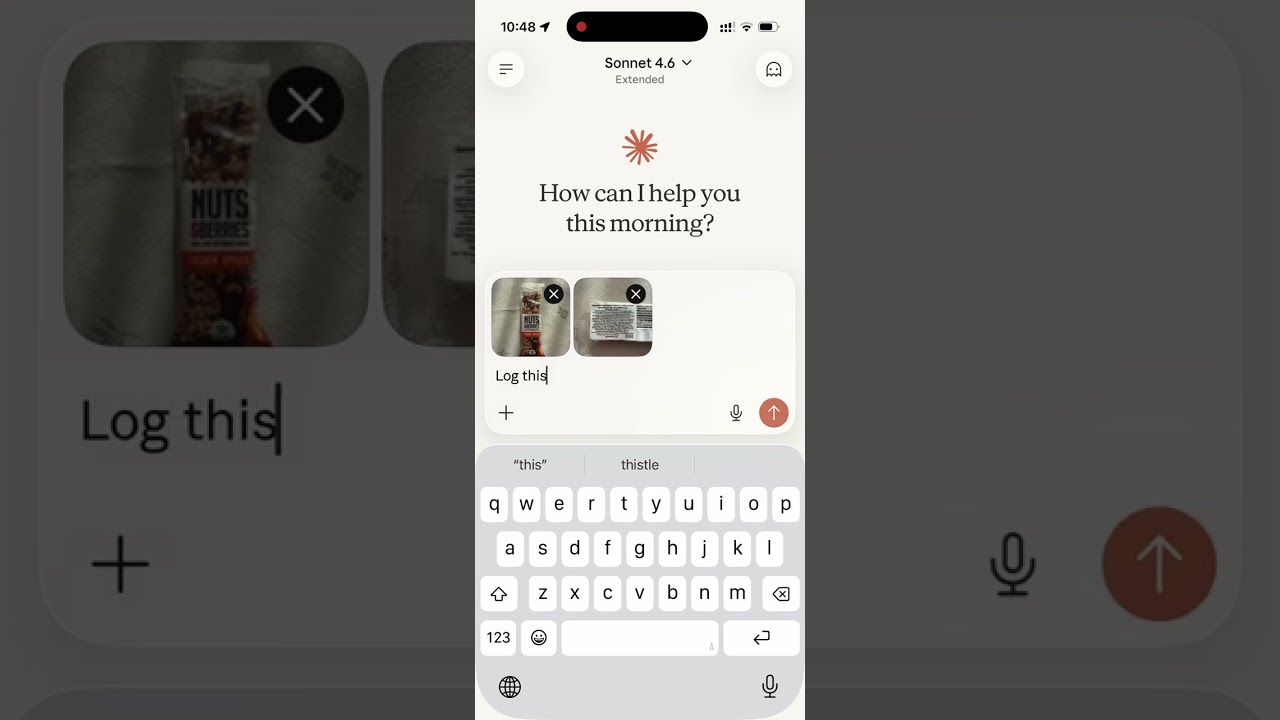
Read the story behind it: How I Replaced MyFitnessPal and Other Apps with a Single MCP Server
Tech Stack
- Bun — runtime and package manager
- Hono — HTTP framework
- MCP SDK — Model Context Protocol over Streamable HTTP
- Supabase — PostgreSQL database + user authentication
- OAuth 2.0 — authentication for Claude.ai connectors
MCP Tools
| Tool | Description |
|---|---|
log_meal | Log a meal with description, type, calories, macros, fiber, total sugar, alcohol, caffeine (mg), notes — from text or a photo of your plate |
start_meal_import | Open the in-chat CSV importer: pick an export from another app, map its columns, preview, confirm |
bulk_import_meals | Write up to 50 imported rows per call — each row validated, duplicates skipped so a re-send is safe |
lookup_barcode | Look up a packaged product's label nutrition by barcode via Open Food Facts (read from a photo or typed) |
get_meals_today | Get all meals logged today |
get_meals_by_date | Get meals for a specific date (YYYY-MM-DD) |
get_meals_by_date_range | Get meals between two dates (inclusive) |
search_meals | Search past meals by keyword, grouped into recurring variations (counts, last logged, typical macros) |
get_nutrition_summary | Daily nutrition totals + goal progress for a date range |
update_meal | Update any fields of an existing meal |
delete_meal | Delete a meal by ID |
set_nutrition_goals | Set daily calorie, macro, fiber and water targets to reach, sugar/alcohol/caffeine limits to stay under, plus an optional target weight |
get_nutrition_goals | Get the current daily targets and limits |
get_goal_progress | Get intake vs. targets and limits for a given day (default: today), plus latest weight vs. target |
log_water | Log a hydration entry in milliliters |
get_water_today | Get today's water intake total and entries |
get_water_by_date | Get water intake for a specific date |
delete_water | Delete a water log entry by ID |
log_weight | Log a body-weight measurement in kg or lb (converted and stored server-side) |
get_weight_today | Get today's weight entries |
get_weight_by_date | Get weight entries for a specific date |
get_weight_by_date_range | Get weight entries between two dates (inclusive), grouped by day |
get_weight_trends | Weight trend: latest, overall change, 7/14/30-day moving averages, min/max, and goal progress |
update_weight | Update an existing weight entry |
delete_weight | Delete a weight entry by ID |
set_weight_unit | Set the preferred weight unit (kg or lb; null to clear) |
get_trends | 7/14/30-day averages, std dev, streaks, day-of-week, best/worst day |
get_meal_patterns | Pre-aggregated behavioural patterns (breakfast effect, late dinner, weekend vs weekday, outliers) |
export_all_data | Export every table — meals, water, weight, goals, profile — as one ZIP of CSVs plus a README, and return a 60-minute download link |
get_profile | Get timezone (+ local date/time), widget language, weight unit, widget display and alcohol tracking in one call |
set_timezone | Set the user's IANA timezone (e.g. America/Los_Angeles) |
set_language | Set the UI language for in-chat widgets (dashboards, charts) — not the language the AI replies in |
get_current_time | Get the current date and time in the user's timezone, plus the UTC instant — for hosts with no clock in context |
set_widget_display | Enable or disable the in-chat visual widgets (dashboards, rings, charts); enabled by default |
set_alcohol_tracking | Turn alcohol tracking on or off (off by default) and choose US standard drinks or UK units; turning it off hides alcohol rather than deleting it |
delete_account | Permanently delete account and all associated data |
MCP Resources
| URI | Description |
|---|---|
nutrition://weekly-summary | Rolling 7-day digest (averages vs targets, best/roughest day) for proactive pulls |
Self-hosting
0. Get the code
git clone https://github.com/akutishevsky/nutrition-mcp.git
cd nutrition-mcp
bun install
cp .env.example .env   # fill in real values as you go through the steps below
Requires Bun 1.x (matches the Dockerfile's oven/bun:1 base image; no exact minor version is pinned).
Making it yours: The public site includes the maintainer's personal bits — Google Analytics, Patreon/GitHub/contact links, and the
nutrition-mcp.comdomain. Runbun run gen:allto produce the public pages, thenbun run depersonalizeto strip the personal bits in one pass (analytics + CSP, the Support/Contact sections, social links, and the domain → ayour-domain.complaceholder). Usebun run depersonalize --dryto preview without writing. Afterwards, swap in your ownpublic/og.png,favicon.ico, andapple-touch-icon.png, and replace the domain placeholder with your real domain. This script only touchespublic/*.htmlandsrc/index.ts— it doesn't touch this README, so if you're publishing your own fork, also edit or remove the Patreon line near the top of this file and the Medium link in Demo.
1. Supabase setup
-
Create a Supabase project.
-
Enable Email Auth (Authentication → Providers → Email) and disable email confirmation.
-
Apply the schema. The full schema lives in
supabase/migrations/. With the Supabase CLI:supabase link --project-ref <your-project-ref> supabase db pushThis creates every table, index, RLS policy, and foreign key the app needs. No local Postgres is involved — migrations run against your hosted project.
-
Copy the service role key from Project Settings → API and use it as
SUPABASE_SECRET_KEY.
2. Environment variables
| Variable | Description |
|---|---|
SUPABASE_URL | Your Supabase project URL |
SUPABASE_SECRET_KEY | Supabase service role key (bypasses RLS) |
OAUTH_CLIENT_ID | Random string for OAuth client identification |
OAUTH_CLIENT_SECRET | Random string for OAuth client authentication |
ALLOWED_ORIGINS | (optional) Comma-separated list of extra browser origins allowed to call /mcp via CORS — localhost/127.0.0.1 on any port are always allowed regardless |
GOOGLE_CLIENT_ID | (optional) Google OAuth client ID for "Sign in with Google" |
GOOGLE_CLIENT_SECRET | (optional) Google OAuth client secret |
OFF_USER_AGENT | Open Food Facts User-Agent for barcode lookups, in the form AppName (email) |
PATREON_CLIENT_ID | (optional) Patreon OAuth client ID, for showing recent posts on the landing page's Support section |
PATREON_CLIENT_SECRET | (optional) Patreon OAuth client secret |
PATREON_CAMPAIGN_ID | (optional) Patreon campaign ID to fetch posts from |
PATREON_ACCESS_TOKEN | (optional) Creator's Access Token from Patreon's client management page — one-time bootstrap seed, see below |
PATREON_REFRESH_TOKEN | (optional) Creator's Refresh Token from the same page — one-time bootstrap seed, see below |
PORT | Server port (default: 8080) |
Generate OAuth credentials:
bun run generate-oauth-creds
or manually:
openssl rand -hex 16   # use as OAUTH_CLIENT_ID
openssl rand -hex 32   # use as OAUTH_CLIENT_SECRET
Patreon posts, one-time setup:
PATREON_ACCESS_TOKEN/PATREON_REFRESH_TOKENare only ever read once, at server boot, to seed thepatreon_tokenstable if it's still empty — the server refreshes and stores its own pair from then on, so leaving these two set permanently is safe (every later boot is a no-op). You never need to touch the database by hand.
3. Google sign-in (optional)
Email/password works out of the box. To also offer "Continue with Google",
follow docs/google-auth-setup.md to create a
Google OAuth client, enable the Google provider in Supabase, and set
GOOGLE_CLIENT_ID / GOOGLE_CLIENT_SECRET. This adds the GET /authorize/google
and GET /auth/google/callback routes — see API Endpoints.
Development
bun install
cp .env.example .env   # fill in your credentials — see Self-hosting above for what to put here
bun run dev             # regenerates public/ pages, then starts with hot reload on http://localhost:8080
The generated pages under public/ (index, tools, privacy, terms, login, /alternatives, locale mirrors, sitemap.xml) are build artifacts, not tracked in git — they're regenerated on every Docker build, in CI, and once at each bun run dev start. --watch only restarts the src/index.ts process on save, so it does not rerun generation — after editing src/copy/, src/routes.ts, or scripts/site-partials.ts, run bun run gen:all yourself to pick up the change.
Testing and quality
bun test                # run the test suite
bun run format           # format with Prettier (4-space indentation)
bun run format:check     # verify the tree is prettier-clean
bun run typecheck        # typecheck src/
CI runs format:check and typecheck on every PR; typecheck is scoped to src/, so a type error in a test file or under scripts/ won't be caught by it.
For in-chat widget development (public/widgets/), bun run harness starts a local host simulator so you can test widgets without a real MCP client.
Connect to Claude.ai
- Open Claude.ai and click Customize
- Click Connectors, then the + button
- Click Add custom connector
- Fill in:
- Name: Nutrition Tracker
- Remote MCP Server URL:
https://nutrition-mcp.com/mcp
- Click Connect — sign in or register when prompted
- After signing in, Claude can use your nutrition tools. If you reconnect later, sign in with the same email and password to keep your data.
API Endpoints
| Endpoint | Description |
|---|---|
GET /health | Health check |
GET /.well-known/oauth-authorization-server | OAuth metadata discovery (root + /mcp-scoped variants) |
GET /.well-known/oauth-protected-resource | OAuth protected-resource metadata discovery (root + /mcp-scoped variants) |
POST /register | Dynamic client registration |
GET /authorize | OAuth authorization (shows login page) |
GET /authorize/google | Redirects to Google's OAuth consent screen ("Continue with Google") |
GET /auth/google/callback | Google OAuth callback — exchanges the code, completes sign-in |
POST /approve | Login/register handler |
POST /token | Token exchange |
GET /favicon.ico | Server icon |
ALL /mcp | MCP endpoint (authenticated) |
Deploy
The project includes a Dockerfile for container-based deployment.
- Push your repo to a hosting provider (e.g. DigitalOcean App Platform)
- Set the environment variables listed above
- The app auto-detects the Dockerfile and deploys on port
8080 - Point your domain to the deployed URL
License
Reviews
No reviews yet
Be the first to review this server!
More Developer Tools MCP Servers
Paperclip
Freeby Paperclipai · Developer Tools
Trending hip-hop artist momentum scores across four cultural dimensions.
Netdata
Freeby Netdata · Developer Tools
Real-time infrastructure monitoring with metrics, logs, alerts, and ML-based anomaly detection.
Toleno
Freeby Toleno · Developer Tools
Toleno Network MCP Server — Manage your Toleno mining account with Claude AI using natural language.
mcp-creator-python
Freeby mcp-marketplace · Developer Tools
Create, build, and publish Python MCP servers to PyPI — conversationally.
MCP Marketplace
Freeby mcp-marketplace · Developer Tools
Search and install MCP servers from inside your AI client.
MarkItDown
Freeby Microsoft · Content & Media
Convert files (PDF, Word, Excel, images, audio) to Markdown for LLM consumption