
Server data from the Official MCP Registry
An AI edits the selected photo in Lightroom Classic with native Develop sliders, pass by pass.
About
An AI edits the selected photo in Lightroom Classic with native Develop sliders, pass by pass.
Security Report
Valid MCP server (4 strong, 3 medium validity signals). No known CVEs in dependencies. Imported from the Official MCP Registry.
14 files analyzed · No issues found
Security scores are indicators to help you make informed decisions, not guarantees. Always review permissions before connecting any MCP server.
Permissions Required
This plugin requests these system permissions. Most are normal for its category.
How to Install
Install command not verified. See the repository for install instructions.
View repositoryDocumentation
View on GitHubFrom the project's GitHub README.
LrC-AVG — Lightroom Classic Autonomous Vision Gateway
LrC-AVG lets Claude, in Claude Desktop, edit a photo in Lightroom Classic, raw or JPEG or any other format Lightroom develops (see Supported formats), the way a photographer does: set a few Develop sliders, look at the result, measure it, adjust again, up to a capped number of passes. It uses only Lightroom's own Develop settings, so every change shows on the sliders, sits in History as a named step, and can be undone. A local engine measures each render (clipping, histogram, pass-to-pass changes) and keeps every pass within clipping limits; Claude's vision makes the aesthetic calls.
One setup file installs everything: a Lightroom plugin, the engine that Claude Desktop starts (an MCP server), and the Deck, a small window that follows an edit. Other AI apps can start the engine too: see Other AI apps.
Built and tested on one Windows 11 PC with Lightroom Classic 15.5.1 and 15.6. Where this page states how something behaves, the evidence is listed under Sources.
See it work
The website, foliovector.com/lrc-avg, has the intro video (1:23) and two worked examples: a written brief, and three variants to pick from.
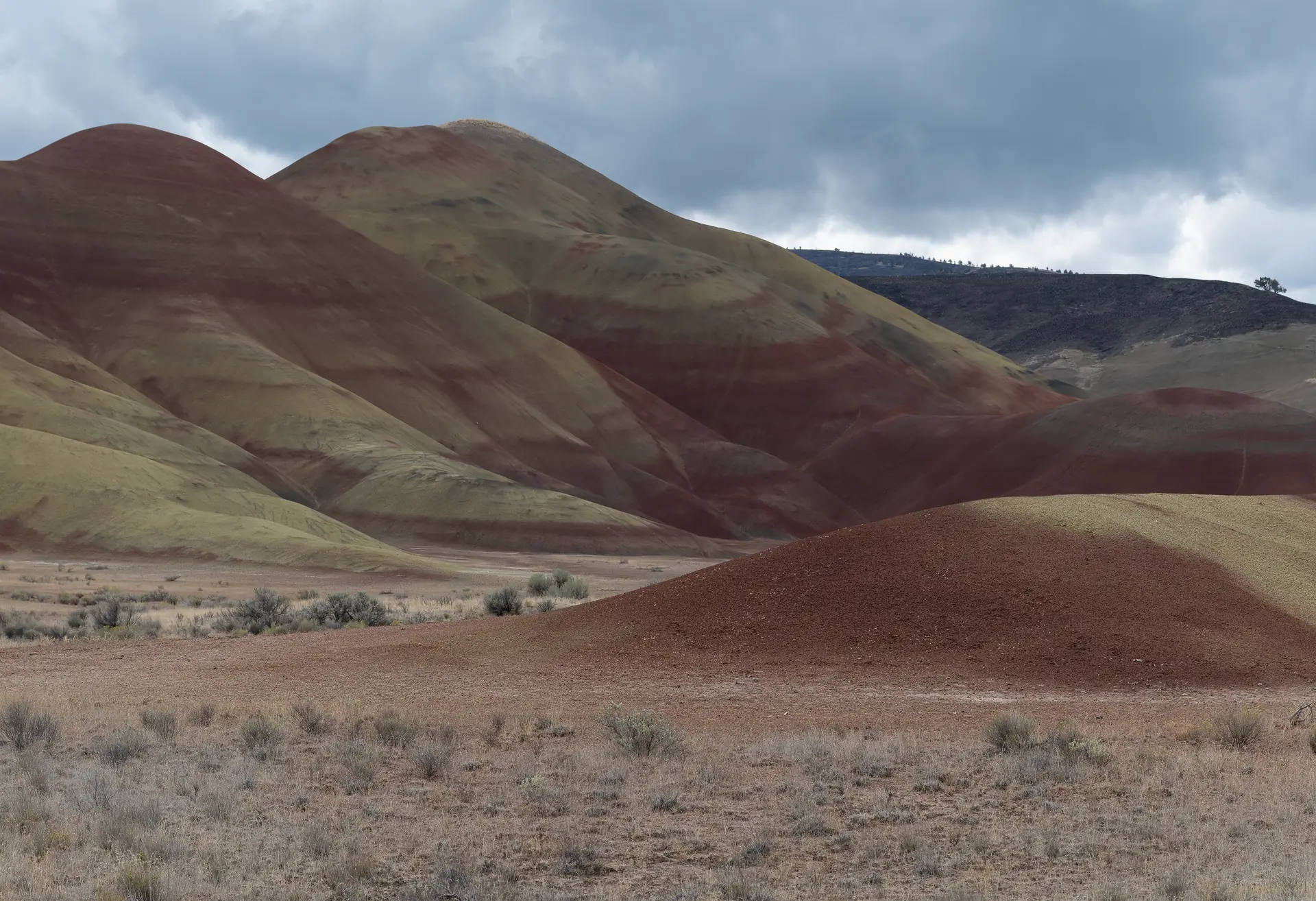
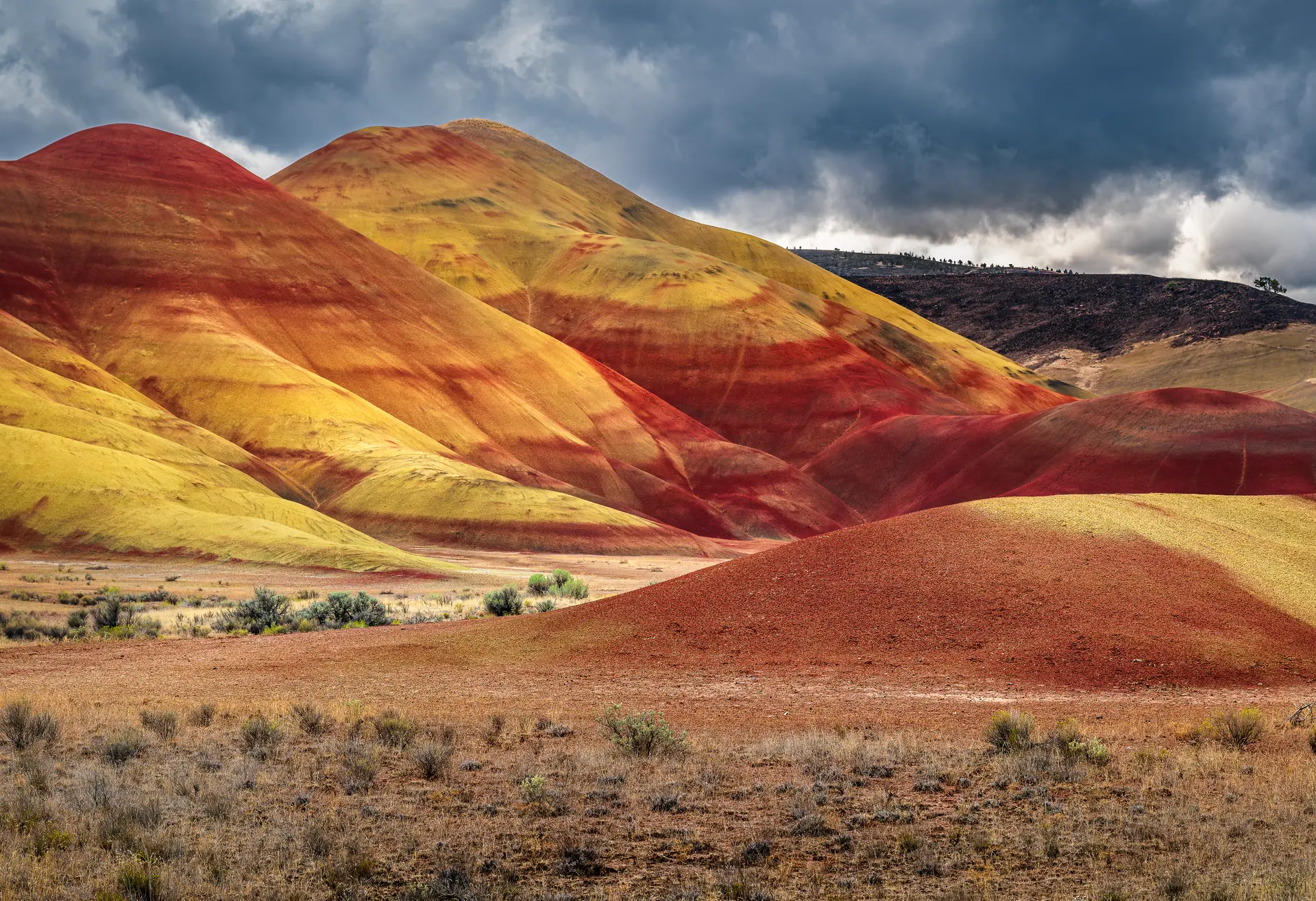
A Painted Hills raw, edited from a brief typed into Claude Desktop (the whole example):
| Before, straight from the camera | After, the same raw edited in Lightroom |
|---|---|
 |  |
The HUD in Lightroom during that edit, at pass 4 (what it shows):

What you need
- Windows 10 or 11, 64-bit (tested on Windows 11 only).
- Lightroom Classic 15.0 or later (see Supported Lightroom versions).
- Claude Desktop, signed in, and started at least once in this Windows account, or another AI app from
docs/CLIENTS.md. The AI model must be able to see images. - Nothing else: the setup brings its own copy of Node.js, and no administrator rights are needed.
Supported Lightroom versions
LrC-AVG supports Lightroom Classic 15.0 and later, and was tested on 15.6. Earlier versions may work but are untested. On a version older than 15.0 or newer than 15.6, nothing is blocked: the HUD says so once when an edit starts, and Claude sees the same notice when it reads the photo's details. If a newer Lightroom no longer offers a setting LrC-AVG uses, Claude is told which one is not available and the edit stays open. A photo on a process version newer than LrC-AVG knows can be described but not edited.
Supported formats
Lightroom develops every file through one of two pipelines: raw (camera raw files and raw DNGs) or rendered (JPEG, TIFF, PNG and the others below). LrC-AVG reads which one a photo uses from its Develop settings, not from its file name, so a .dng can be either. Both get the same sliders and intents. Two things differ:
- White balance: on a raw photo, temperature is in Kelvin; on a rendered photo, temperature and tint are relative, -100 to +100.
- Profiles: a raw photo takes the Adobe and camera-matching profiles; a rendered photo takes Color or Monochrome. Each intent names one of each.
Each format below was tested on one Windows 11 PC with Lightroom Classic 15.6. A full session means: the intent's starting settings, two passes, an exact revert, a sync onto another photo, and a preset made from it.
| Format | Pipeline | Tested |
|---|---|---|
| Camera raw (Nikon NEF) | raw | Full session on 11 photos, virtual copies included |
| DNG | raw | Full session on 3 photos |
| DNG (rendered, e.g. from Photoshop) | rendered | Full session on 2 photos |
| JPEG | rendered | Full session on 6 photos; all 11 intents on one JPEG; one Claude Desktop chat |
| TIFF (8-bit, 16-bit, 32-bit HDR, CMYK) | rendered | Full session on 4 photos, one of each |
| PSD | rendered | Full session on 2 photos |
| PSB (Photoshop Large Document) | rendered | Full session on 1 photo |
| PNG | rendered | Full session on 1 photo |
| AVIF (HDR) | rendered | Full session on 1 photo |
| JPEG XL | rendered | Full session on 1 photo |
| HEIC / HEIF | rendered | On 1 photo: every slider's limits written and read back, Color and Monochrome, an export, and put back; not in the full-session test |
- Older photos: Lightroom's process versions 5 and 6 edit as they are. Four photos on version 5, raw and JPEG, were in the test. An older process version is refused; Claude says so.
- Between raw and rendered: a sync from a raw photo onto a JPEG (or back) copies everything except white balance and the profile, and says it left those two out.
- HDR photos (the 32-bit TIFF, the HDR AVIF) edit like the others, with exposure limited to ±5.
- Video is not supported: Lightroom does not develop it.
Install
- Download
LrC-AVG-Setup-<version>.exefrom the latest release. - Double-click it. Windows will probably show Windows protected your PC. Click More info, check that the app is
LrC-AVG-Setup-<version>.exe, then click Run anyway. Why the setup is not signed explains this. - If Lightroom Classic or Claude Desktop is open, the setup asks you to close them. Close them, then click Retry.
- Click through the setup. It installs into your own Windows account, so Windows does not ask for an administrator.
- At the end, a message says what the setup did with Claude Desktop's settings. Click OK, then Finish.
- Start Lightroom Classic and Claude Desktop again.
The setup does three things:
- It puts the plugin into Lightroom's plugin folder,
%APPDATA%\Adobe\Lightroom\Modules\LrC-AVG.lrplugin. Lightroom lists it as LrC-AVG (Autonomous Vision Gateway), switched on. - It adds an entry named
lrc-avgto Claude Desktop's settings file and keeps a backup of the old file next to it. Your other entries stay as they are. - It installs the program files, with the Deck, into
%LOCALAPPDATA%\LrC-AVG, and adds LrC-AVG to Windows' installed apps.
To check the download, compare its SHA-256 with the SHA256SUMS.txt file on the release page. In File Explorer, hold Shift, right-click the setup and choose Copy as path. Then in PowerShell type Get-FileHash and paste the path, for example Get-FileHash "D:\Downloads\LrC-AVG-Setup-<version>.exe". Your Downloads folder may not be under C:\Users\<you>.
Updating: download the new setup and run it the same way. It replaces the old version and keeps your settings, intents and logs.
Other ways to install
The setup is the way for most people. These are the others, each with the date it was last tested:
| Way | For | Tested |
|---|---|---|
| The setup (above) | Claude Desktop, with the Deck | 2026-10-17, install, update and uninstall on one PC |
Claude Desktop extension (.mcpb) and the plugin zip | Claude Desktop without the setup and without the Deck | 2026-10-27, on one PC that has Node.js 24 installed |
| Claude Code plugin, from a copy of this repository | Developers | 2026-10-27 |
| An entry in another AI app's settings | The apps in Other AI apps | Per app, in docs/CLIENTS.md |
Claude Desktop extension. From the release after v1.1.0 on (v1.1.0 has only the setup):
- From the latest release, download
lrc-avg-<version>.mcpbandLrC-AVG.lrplugin-<version>.zip. - Unzip the zip into a folder you keep, for example
%USERPROFILE%\LrC-AVG. Lightroom loads the plugin from that folder, so do not delete it. - In Lightroom, choose File > Plug-in Manager, click Add, and choose the
LrC-AVG.lrpluginfolder from step 2. Lightroom lists it as LrC-AVG (Autonomous Vision Gateway). - In Claude Desktop, open Settings > Extensions and drag the
.mcpbfile onto it. Leave the Tool profile setting atfull(Tool profiles).
Use the extension or the setup, not both: with both, Claude Desktop runs two LrC-AVG engines and Lightroom has two copies of the plugin under the same id. If the setup is installed, do not add the zip.
Claude Code plugin. In PowerShell, in a copy of this repository: npm install, npm run build, then claude --plugin-dir <the repository folder>. Add the plugin from plugin\LrC-AVG.lrplugin in the Plug-in Manager, as docs/DEVELOPMENT.md describes.
Check that it works
In Lightroom, choose File > Plug-in Extras > LrC-AVG - Status. Outside a chat, it reads LrC-AVG status: ENGINE NOT CONNECTED (normal outside a chat). That is normal: the engine connects at Claude's first LrC-AVG tool call and lets go after a minute without one. During a chat it reads LrC-AVG status: READY.
If something goes wrong
- If Status says BRIDGE NOT RUNNING, quit Lightroom (File > Exit), start it again, then choose the menu item again.
- If Status says RESTART LIGHTROOM TO FINISH THE UPDATE, quit Lightroom and start it again.
- If Status says the AI client has not started LrC-AVG yet, or Claude says it has no LrC-AVG tools: quit Claude Desktop (right-click the Claude icon in the system tray > Quit) and start it again. If that does not help, run the setup again and read its last message.
- If Claude answers ENGINE_BUSY ("Another LrC-AVG engine ... is using the Lightroom bridge"), another chat, Cowork or Code task, or another AI app is using LrC-AVG. Go back to that one and end its edit if it has one open, wait a minute, then ask again here. See One Claude surface at a time under Known limitations.
- If there is no LrC-AVG - Status under File > Plug-in Extras, open File > Plug-in Manager, select LrC-AVG (Autonomous Vision Gateway) and click Enable.
- To report a problem, choose LrC-AVG - Status first: it saves its text as
%LOCALAPPDATA%\LrC-AVG\status.txt. Then open an issue and attach that file.
Why the setup is not signed
Windows trusts a program more when its publisher has signed it with a code-signing certificate. LrC-AVG is a free project by one person, and a certificate costs money every month, so the setup is not signed yet. Free signing for open-source projects (SignPath Foundation) is planned once people use LrC-AVG: issue #171.
What that means for you:
- SmartScreen shows Windows protected your PC for the downloaded setup. More info > Run anyway starts it. Every new version starts out unknown to SmartScreen again.
- Smart App Control blocks unsigned programs, and Windows has no "Run anyway" for it. If it is on (Windows Security > App & browser control > Smart App Control), LrC-AVG cannot be installed on that PC for now.
- The setup is built from this repository's source by GitHub Actions (
.github/workflows/release.yml), and the release page lists its SHA-256.
What leaves your PC
- The engine and the plugin talk to each other only on this PC (127.0.0.1). The engine makes no internet connections, and LrC-AVG sends no usage data.
- To judge an edit, the AI looks at preview JPEGs of your photo (1600 pixels on the long side by default). Your AI app sends them, with your chat, to its AI provider (Anthropic for Claude), as it does with any image you share in a chat.
- Your original files are never changed. Every edit is a Develop setting in your Lightroom catalog.
Other AI apps
LrC-AVG is a standard MCP server, so other MCP clients can start it as well: Claude Code, OpenCode, Hermes Agent and Antigravity CLI were tested on 2026-10-16. Entries for Codex CLI, Cursor, VS Code (GitHub Copilot) and Windsurf are written from those apps' documentation and have not been tested. The setup writes only Claude Desktop's entry. The entries for the others, with the paths the setup installs to, are in docs/CLIENTS.md.
Tool profiles
LrC-AVG has 65 tools. A long tool list costs the AI context and makes a wrong pick likelier, above all for smaller models (issue #165). So the engine offers two profiles:
| Profile | Tools the AI sees |
|---|---|
full (the default) | Every tool |
edit | The 16 tools a chat needs to edit the selected photo: lr_help, lr_get_active_photo_context, lr_get_preview, lr_list_intents, lr_save_intent, lr_begin_session, lr_step, lr_set_regions, lr_approve_pass, lr_select_variant, lr_end_session, lr_list_masks, lr_create_mask, lr_edit_mask, lr_delete_mask, lr_crop |
The edit list is less than half the size of the full one: 56,984 characters of tool list against 133,038, measured when the engine had 62 tools [handle: tools/list of the built engine under each profile, over the MCP SDK's in-memory transport, 2026-10-28]; how many tokens that is depends on the model [inference]. Under edit, a call to another tool is refused with a message saying that the full profile has it. lr_help names the profile in force (tool_profile).
To use the edit profile with Claude Desktop, quit Claude Desktop, then run in PowerShell:
& "$env:LOCALAPPDATA\LrC-AVG\resources\node\node.exe" `
  "$env:LOCALAPPDATA\LrC-AVG\resources\engine\dist\setup\setup-cli.js" --tools edit
and start Claude Desktop again. --tools full goes back. Running the setup again, an update included, keeps the profile you chose. Other AI apps: add "LRC_AVG_TOOLS": "edit" to the env of the lrc-avg entry (docs/CLIENTS.md). The .mcpb bundle offers the profile as a setting when it is installed [unverified: not yet tried in Claude Desktop].
LrC-AVG and Automaat/lightroom-mcp
LrC-AVG began as a fork of Automaat/lightroom-mcp and is meant to complement it, not replace it. Of the 68 tools upstream has at commit 1040453, 54 have an lr_* equivalent here; the rest are planned or wait for a decision. On top of that, LrC-AVG adds the measured, guarded edit loop, the looks, the HUD and the provenance logs. The tool-by-tool map, and how to run both servers side by side (they use different plug-in ids and ports), are in docs/PARITY.md (section "Using both servers"). How we follow upstream's changes: docs/UPSTREAM_SYNC.md. Code taken from upstream is credited in each half's THIRD_PARTY_NOTICES.md.
Your first session
- In Lightroom, select one photo (in Library or Develop), raw or JPEG or any format in Supported formats.
- In Claude Desktop, start a new chat and type: Tune the active photo for golden hour landscape.
- If Claude Desktop asks whether LrC-AVG may use a tool, allow it.
What happens next:
- The engine saves a Develop snapshot of the photo, named AVG pre-session …. Aborting goes back to it.
- The HUD, a small floating window, opens in Lightroom and follows the session (below).
- Your words come first. Claude starts from an intent (a set of starting values, below) only when one fits what you asked for, and leaves it when you ask for something else; with no intent, pass 0 changes nothing but clipping.
- Pass 0 sets the intent's camera profile, lens corrections and starting values. Claude then makes up to 8 more passes (the Max passes setting). Before each pass it looks at a fresh render and the engine's measurements. Each pass is one History step, named AVG <id> pass n/N.
- The engine caps how far each slider moves per pass, and keeps clipping within limits: by default at most 0.5 % of pixels blown out and 1.0 % crushed to black. Blown out means two or more colour channels at the top; a saturated colour with one channel at the top (bright orange leaves, a red sign) is not corrected, and Claude is told which channel it is.
- The session ends when Claude accepts the edit, or when you click Accept or Abort in the HUD.
Claude Desktop shows the renders Claude looks at only inside the tool-call boxes in the chat: click a box to expand it. The photo in Lightroom shows the same edit.
What else you can ask
-
Other looks. Eleven intents come with the engine: Black and white; Landscape — blue hour, forest shade, golden hour, midday high contrast, overcast flat light; Neutral technical correction; Night — stars and Milky Way; Pet — fur detail; Portrait — natural light, skin first. Ask "Which intents are there?" to see them, with your own.
-
Variants. "Make three golden-hour variants of this photo." The engine makes virtual copies AVG <intent> A, B and C with different looks and shows them side by side. You pick one, with Pick A/B/C in the HUD or in the chat, and the remaining passes go to your pick. Select the original photo, not a virtual copy, before you ask. Every intent except Neutral technical correction has variants.
-
Sync a burst. After a session you accepted: "Sync this edit to the selected photos." It copies the settings to the photos selected in Lightroom, up to 500. For a burst of the same scene, Claude can instead match each photo's brightness to the edited one. A request works for about 30 seconds; Claude then asks again for the photos left, until all are done. Each photo gets its own snapshot AVG pre-sync … first.
-
Vignette and grain. "Add a soft dark vignette and a little grain." Claude uses the Effects panel's Post-Crop Vignetting sliders (Amount, Midpoint, Roundness, Feather, Highlights and the Style, by number 1 to 3) and its Grain sliders (Amount, Size, Roughness), on raw and rendered photos alike.
-
Black-and-white mix and Calibration. "Make it black and white and darken the blue sky." Once the photo has a black-and-white profile (Adobe Monochrome on a raw photo, Monochrome on a JPEG or other rendered photo), Claude uses the B&W panel's eight colour sliders, Red to Magenta. The Calibration panel's Shadows Tint and the Red, Green and Blue Primary Hue and Saturation work on any photo.
-
Save a preset. "Save this photo's settings as a preset called …". It is saved in the group LrC-AVG, and Lightroom lists it after a restart.
-
Save your own intent. Describe the look you want and ask Claude to save it as an intent. Claude shows you the intent first and saves it only after you approve. An intent names one profile for raw photos and one for JPEG, TIFF, PNG and the other rendered photos (
"profile": { "raw": "Adobe Landscape", "rendered": "Color" }), and keeps white-balance starting values for each in"priors_by_pipeline", because a raw photo's temperature is in Kelvin and a JPEG's is relative. Intent files written for engines before 0.22.0 are skipped with a warning that says how to rewrite them. -
Save an edit as a look. Select a photo you have edited the way you like and ask "Save this edit as a look called my_look." Claude shows you the look first and saves it only after you approve. A look keeps the photo's profile, tone and presence (exposure, contrast, highlights, shadows, whites, blacks, texture, clarity, dehaze, vibrance, saturation), white balance, tone curves, HSL, colour grading, vignette and grain, B&W mixer and calibration. Pass 0 then writes those values on the next photo you edit with it, and Claude adjusts from there (Looks says how). Sharpening, noise reduction, lens corrections and crop stay with each photo. A look's white balance applies only to photos of the same kind as the one you saved it from (raw, or JPEG and the other rendered formats), because the units differ.
-
Copy, rename or delete your intents. "Copy golden hour as my_golden_hour with warmer shadows", "Delete my_golden_hour." Claude asks you before it saves or deletes. Only your own intents can be deleted; deleting one that replaced a bundled intent brings the bundled one back.
-
Find, rate and keyword photos. "Find my five-star photos from September 7 with the keyword heron", "Which collections do I have?", "Rate the selected photos three stars", "Add the keyword pond to these photos." Claude searches by file name, keywords, star rating, capture date and collection, and sets star ratings and keywords on at most 100 photos per request. Claude tells you which photos will change first. Ratings and keywords are not Develop settings: History and snapshots don't cover them, but Claude can put the earlier values back on request.
-
Keywords in a hierarchy. "Which keywords do I have under Places?", "Add Places > Europe > Paris to these photos." Claude lists your keyword tree and writes a nested keyword as a path, parent first with
|between the levels (Places|Europe|Paris), creating the levels that are missing. A plain name means the top-level keyword of that name. -
GPS positions. "Set the location of these photos to 48.5818, 7.7509", "Remove the GPS position from this photo." Claude sets or removes the latitude and longitude of at most 100 photos per request, with each photo's earlier position in the answer. LrC-AVG does not write the altitude.
-
Where a photo was taken and where its file is. "Where was this photo taken?", "Which folder are the selected photos in?" Search results, the selected photos and the photo open in Develop come with each photo's GPS position (empty for none); search results and the selected photos also come with the file's path. This needs plugin 0.21.0; with an older plugin Claude says so.
-
Pick flags, titles and captions. "Flag these photos as picks", "Reject the blurry ones", "Give these photos the title Heron at dawn and a caption." Claude sets the pick flag (pick, reject or none) and the IPTC title, caption and headline of at most 100 photos per request, with each photo's earlier values in the answer. Like ratings, these are not Develop settings: History and snapshots don't cover them.
-
What a photo already has. "What title, flag and keywords do these photos have?", "Is this photo in a stack?" Claude reads each photo's title, caption, headline, flag, keywords, GPS position and stack.
-
Photos of one folder. "Find the photos in D:\Photos\2026\2026-09-07", with or without its subfolders. Give the folder's full path.
-
Look through a shoot. "Show me the photos of this folder one by one", "Which of these is sharpest?" Claude can see any photo of the catalog by its id, without selecting it, about 3 seconds each.
-
AI Denoise. "Denoise the selected photos at 50." Lightroom Classic 15 or later. For each photo Lightroom switches to Develop and selects it, then goes back to where you were. Each photo Denoise changes first gets a snapshot AVG pre-denoise …, which puts it back. Lightroom computes Denoise in the background (its Activity Center shows it), about 10 seconds a photo, so Claude works through a large selection over several requests.
-
Colour range, depth range and brush masks. In an edit: "Brighten only the orange of the leaves", "Darken the background by distance", "Paint a brush stroke along the horizon and lift it." A colour range copies its colour from a Color Range you click in Lightroom (Tools > Create New Mask > Color Range); a brush is painted from strokes Claude draws (no erase); a depth range works only on photos with depth data, such as iPhone Portrait photos.
-
Collections. "Create a collection 2026-10-04 in the set 2026 > Trips and put the selected photos in it." Claude creates a collection (and any missing collection sets), and adds photos to it or takes them out, up to 500 per request. Photos cannot be added to a smart collection: Lightroom fills it by its rules. Claude can also make a smart collection from search filters and delete a collection after you confirm (version 1.5.0, not yet tried in Lightroom).
-
Remove photos, undo, settings by Lightroom key (not yet tried in Lightroom). "Remove these three copies from the catalog" (the files stay on disk; a master only together with all its virtual copies; Lightroom Classic 14.3 or later), "Undo Lightroom's last step", "Set LensManualDistortionAmount to 10": settings by Lightroom's own key names, a snapshot first, outside a session and without its per-round limits. Each asks for your go-ahead where it cannot be undone.
-
More catalog and Develop tools (version 1.5.0, not yet tried in Lightroom). Colour labels, renaming keywords, the folder list, IPTC creator, copyright and location, a metadata export to a JSON file, searching by camera, lens, ISO and more; Develop presets listed, compared, exported and applied; Auto Tone and Auto White Balance, Reset, process version, snapshots and virtual copies; sharpness and statistics for up to 20 photos. Each tool that changes a photo takes a snapshot first or gives the earlier values back. The full list:
docs/PARITY.md. -
Export. "Export the five-star photos of the collection Ella's Wedding to a new folder Ella Wedding Exports on my desktop, as PNG files that fit 2040 x 1080." Claude exports with your edits as JPEG, PNG or TIFF, full size or resized, or the original file. A file of the same name already in the folder gets a new name (
name-2.png) unless you ask to overwrite or skip it. -
Import. "Import the photos on G:\DCIM that are not in the catalog yet, copied into D:\Photos\2026." Claude imports the photo files of a folder, where they are or copied first (never overwriting), and skips files the catalog already holds at that path. A photo imported earlier from another folder is not recognised as the same photo.
-
Import into dated folders. "Import G:\DCIM copied into D:\Photos, in yyyy-mm-dd folders, renamed yyyymmdd-name, and show me the plan first." Copies can go into folders and names made from the capture date (tokens
{yyyy}{mm}{dd}{name}), XMP sidecars renamed with them; a dry run lists where each file would go and changes nothing. The engine reads the date from NEF, DNG and other TIFF-based raws, TIFF and JPEG; a file it cannot read (CR3, RAF, HEIC, PNG, PSD) is listed as failed and not copied. -
Stack brackets at import (not yet tried in Lightroom). "Import G:\DCIM and stack the brackets, frames within 2 seconds." Frames shot close together are stacked as they are imported, the first frame on top. A photo already in the catalog is not stacked, and stacks cannot be undone or made later from Claude: use Photo > Stacking in Lightroom.
-
Export and import work for about 30 seconds per request, then Claude goes on with another request until all are done. Each imported photo is listed with the file it came from (
source), the file the catalog holds (path, the copy when copying first) and its capture time (empty if Lightroom has not read it yet).
Sync, presets, ratings, keywords, GPS positions, collections, exports and imports are not available while a session is open.
Looks
A look is an intent that carries a style: your own edit, a preset, or one you describe. Claude starts each photo from it and then adapts it to that photo.
- Save an edit as a look. Select a photo you edited the way you like and ask "Save this edit as a look called warm_film." Claude shows you the look and saves it only after you approve. Besides the sliders listed above, it keeps the photo's AI masks that Lightroom finds by itself (subject, sky, background, the landscape kinds, and every person's skin, hair, clothes and other parts), by kind, name and slider values, not their shape. Masks of one person, gradients, brushes and ranges stay with the photo.
- Make a look from a preset. "Make a look from my preset Warm Evening." Claude reads the preset's settings and shows you the look first. Settings the look cannot hold, such as a preset's masks, are listed and left out.
- Reference photos. A look saved from an edit remembers that photo. During a session the engine compares each pass with it, and with any other photos you name ("use my collection Favourite Sunsets as references"). Claude sees how far the photo is from them; nothing is forced toward them.
- How a look treats the tones. Each look has a tone mode, and you can ask for another one in a session ("use Lightroom's Auto for the tones"):
- adapt (looks saved from an edit): the look's exposure, contrast, highlights, shadows, whites, blacks, texture, clarity and dehaze are a starting point, and Claude adapts them to the photo, using the reference photos as a guide.
- set (the bundled intents, and looks you describe): the values are written as they are, and Claude adjusts from there.
- auto: Lightroom's own Auto Tone sets the tones first, then the look's colour and character go on top. The Auto step shows in History under Lightroom's own name; Abort and revert put the photo back as for any other session.
- Classic methods. Three bundled looks follow a classic method:
classic_zone_system(Ansel Adams' Zone System: a full tonal scale, then dodging and burning),classic_high_keyandclassic_low_key(chiaroscuro). Each names the measured ranges its method expects, for example "the darkest 5% reach Zone II". Every pass reports whether the photo is inside each range (look_checks); nothing is refused for them. You can add suchchecksto your own looks. - Masks in a session. When a look has masks, Claude makes them on each photo and adjusts them to it; each mask uses one pass.
- Looks in the prompt menu. Each look is also a prompt,
look-<name>, in the AI app's menu of prompts, in apps that show MCP prompts. Claude Desktop shows none in its + menu [stated: Jim, 2026-10-31,docs/reports/phase10/PHASE10.md"Observed"], so there you ask for the look by name in the chat. Pick one with a photo selected in Lightroom to edit it with that look. - Not sure which look? Ask for an edit without naming one, and Claude may suggest two or three looks that fit, or none.
The HUD
The HUD opens by itself when an edit starts (if it is not open already), and from File > Plug-in Extras > LrC-AVG - Show Vision Gateway HUD. It takes the keyboard when it opens: click Lightroom's main window before you use keyboard shortcuts.
Below, <AI> stands for the name of the AI client you edit with (for example Claude Code or OpenCode), or "the AI" when the client gives no name or no engine is connected.
From top to bottom it shows:
- The headline: whose turn it is. <AI> is working. Nothing needed from you. while the AI works. When something is needed from you it starts with "Your turn": Your turn: pick a copy, or tell <AI> which one.; Your turn: approve pass n so <AI> can go on.; Your turn: <AI> thinks the edit is done.; Your turn: select the edit's photo again. After an edit ends: Done: the edit is kept. or Done: the photo is back as it was.
- The buttons (below).
- A feedback line: what your last click did (for example "Accept sent; waiting for <AI>."), or the plugin's latest note.
- Photo: the file name (and copy name).
- Camera: ISO, shutter speed, aperture, lens and lens-profile status.
- Step: what is happening, for example Setting profile, lens corrections and baseline; Applying pass 2 of 8; Rendering a preview; Measuring the preview; <AI> is looking at the result; Waiting for your pick; Waiting for your approval; <AI> thinks the edit is done; Accepted; Aborted. From pass 1 on, the label is followed by the pass, for example "(pass 2 of 8)".
- The selection line: Selection: the edit's photo., or Target changed: … if you select a different photo during the edit.
- Changes in the latest pass: a grid with the slider, before, after and change, up to 12 rows. Sliders carry the names Lightroom's Develop panel shows, such as Orange Saturation.
- The clipping sentence: Clipping: within limits., or one sentence saying what the guardrails did, for example that a pass was undone, a clipping was corrected, or a slider was held back.
- The settings the edit uses (between edits, the settings page's).
- The connection line: Connected to <AI> · <model>. (the model the AI named when the edit began; Connected to <AI>. without one), Not connected to <AI>., or LrC-AVG is not running in Lightroom. The HUD keeps the name from the last edit after the AI disconnects. The Deck shows the same <AI> · <model> under its step line.
A line that is too long for the window continues on a second line, and ends with "..." if it still does not fit.
Buttons:
| Button | What it does |
|---|---|
| Pick A / B / C | Variants mode, while a pick is awaited: continue on that copy. |
| Approve pass n | Approve-each-pass mode, while pass n waits for you (below). |
| Accept | Ends the session and keeps the edit, once the running step has finished. |
| Abort | Stops the running step before its next write, then puts the photo back to the AVG pre-session … snapshot. It is the last button. While Lightroom computes an AI mask, Abort ends the wait within a few seconds; it puts the photo back only if the mask's result has shown, otherwise it leaves the photo as it is and names the snapshot: wait until the mask's shape shows in Lightroom before you click that snapshot. |
The buttons are greyed out while the engine is not connected, and while the HUD checks an edit after a reconnect. After a click they all stay off until the engine answers that click, or for at most 10 s. When an edit ends, the HUD stays open and shows the outcome until you close it or the next edit starts.
Menu items
Under File > Plug-in Extras, in this order:
| Menu item | What it does |
|---|---|
| LrC-AVG - Status | Says whether the plugin's bridge runs and whether the engine is connected; shows the plugin and engine versions, the Claude Desktop entry, whether the Deck is installed and its version, the ports and the plugin log, and saves the same text as %LOCALAPPDATA%\LrC-AVG\status.txt to attach to a GitHub issue. |
| LrC-AVG - Show Vision Gateway HUD | Opens the HUD. |
| LrC-AVG - Pick A, Pick B, Pick C | The HUD's Pick buttons. |
| LrC-AVG - Approve Pass | The HUD's Approve pass n. |
| LrC-AVG - Accept Edit | The HUD's Accept. |
| LrC-AVG - Abort Edit | The HUD's Abort. |
Each of the last five waits up to 20 s for the engine, and for an edit being checked after a reconnect, and reports in the HUD's feedback line. If it cannot send, the line says why, for example "Pick A not sent: no pick is waiting."
There are no keyboard shortcuts.
Settings
File > Plug-in Manager, select LrC-AVG (Autonomous Vision Gateway): the LrC-AVG settings section. Values are saved as you change them, and the AI's next session reads them; a session already open keeps its own. Claude can override a value for one session if you ask (for example "use 6 passes"), and an intent's own clipping limits come before the page's.
| Setting | Default | Allowed |
|---|---|---|
| Mode | Autonomous | Autonomous, Approve each pass |
| Max passes per photo | 8 | 1-16, not counting pass 0 |
| Variant count | 3 | 2-3 copies in Variants mode |
| Step decay per pass | 1.0, 0.6, 0.4, 0.25 | 1 to 8 numbers, each above 0 and at most 1: the share of each slider's per-pass maximum that pass 1, 2, 3, … may use |
| Highlight clipping, % of pixels | 0.5 | 0-100; pixels at 253 or above |
| Shadow crushing, % of pixels | 1.0 | 0-100; pixels at 2 or below |
| Preview long edge, pixels | 1600 | 800-1920 |
| Preview JPEG quality | 75 | 60-90 |
| Temp preview folder | %TEMP%\LrC-AVG\previews | shown only; cannot be changed |
| Intents folder | blank: LrC-AVG\intents in your Documents folder (usually C:\Users\<you>\Documents\LrC-AVG\intents) | any folder |
| Log folder | blank: %LOCALAPPDATA%\LrC-AVG\logs | any folder |
| Receive port / Send port | 8765 / 8766 | 1024-65535, different from each other and not 8767 (the engine's own); used from the next Lightroom start |
If you opened this section before 1.2.0, it stored Max passes 4 then. 1.2.0 changes a stored 4 to 8 once, the first time the engine or this page reads the settings; a 4 you set after that stays.
A value that is not valid is not used: the default takes its place, and the bottom of the section lists it with the reason. A changed log folder does not hide older sessions: the engine remembers every log folder it has used.
Approve each pass
Set Mode to Approve each pass to see each pass before Claude makes the next one.
- Pass 1 needs no approval.
- From pass 2 on, Claude's next pass waits up to 40 s for Approve pass n in the HUD.
- If you have not approved by then, nothing is written, and Claude is told to let you know the pass waits for your approval. Click Approve pass n in the HUD, or approve in the chat; Claude then records your approval and goes on.
- In Variants mode, picking a copy approves the pass it was picked at.
In testing, Claude also asked in the chat before each pass on its own.
Undoing an edit
- During a session: Abort, in the HUD or the menu.
- Afterwards: in Develop, the Snapshots panel has AVG pre-session … for each session and AVG pre-sync … for each synced photo; the History panel has every pass as its own step.
- Virtual copies from Variants mode stay in the catalog, including the ones you did not pick. After the session, ask Claude to remove the ones you do not want: it asks you first, and needs Lightroom Classic 14.3 or later. Or select them in Library, choose Photo > Remove Photos…, then Remove.
- Lightroom's own undo. Between sessions, Claude can undo Lightroom's last step (Edit > Undo) after you agree. It undoes whatever was last, which may be your own change.
Where files go
Documentation truncated — see the full README on GitHub.
Reviews
No reviews yet
Be the first to review this server!
More Developer Tools MCP Servers
Rea
Freeby Morluto · Developer Tools
Reverse engineer anything from your terminal or agent with one CLI and MCP server.
Paperclip
Freeby Paperclipai · Developer Tools
Trending hip-hop artist momentum scores across four cultural dimensions.
Scrapling
Freeby D4Vinci · Developer Tools
Web scraping with stealth HTTP, real browsers, and Cloudflare bypass. CSS selectors supported.
Git
Freeby Modelcontextprotocol · Developer Tools
Read, search, and manipulate Git repositories programmatically
Toleno
Freeby Toleno · Developer Tools
Toleno Network MCP Server — Manage your Toleno mining account with Claude AI using natural language.
MCP Marketplace
Freeby mcp-marketplace · Developer Tools
Search and install MCP servers from inside your AI client.