
Server data from the Official MCP Registry
The OpenROAD MCP server - interactive EDA sessions via Model Context Protocol
About
The OpenROAD MCP server - interactive EDA sessions via Model Context Protocol
Security Report
Valid MCP server (1 strong, 1 medium validity signals). No known CVEs in dependencies. Package registry verified. Imported from the Official MCP Registry.
5 files analyzed · 1 issue found
Security scores are indicators to help you make informed decisions, not guarantees. Always review permissions before connecting any MCP server.
How to Install
Add this to your MCP configuration file:
{
  "mcpServers": {
    "io-github-the-openroad-project-openroad-mcp": {
      "args": [
        "-y",
        "openroad-mcp"
      ],
      "command": "npx"
    }
  }
}Documentation
View on GitHubFrom the project's GitHub README.
OpenROAD MCP Server
A Model Context Protocol (MCP) server that provides tools for interacting with OpenROAD and ORFS.
About OpenROAD MCP
New here? Check out the Quick Start Guide to get your AI assistant analyzing designs in 5 minutes.
OpenROAD MCP eliminates the barrier between your AI assistant and physical design by connecting Claude, Cursor, and other MCP-compatible clients directly to the OpenROAD layout tools.
OpenROAD is the leading open-source, foundational application for semiconductor digital design, delivering an Autonomous, No-Human-In-Loop (NHIL) flow from RTL-GDSII. OpenROAD-flow-scripts (ORFS) is the fully autonomous flow built around it.
With this MCP server, your AI assistant can:
- Execute Commands - Run interactive OpenROAD sessions with full PTY support.
- Manage Sessions - Create, list, inspect, and terminate multiple physical design sessions.
- Track History & Metrics - Access full command history and performance metrics for analysis.
- Visualize Reports - List and read report images from ORFS runs directly in the chat.
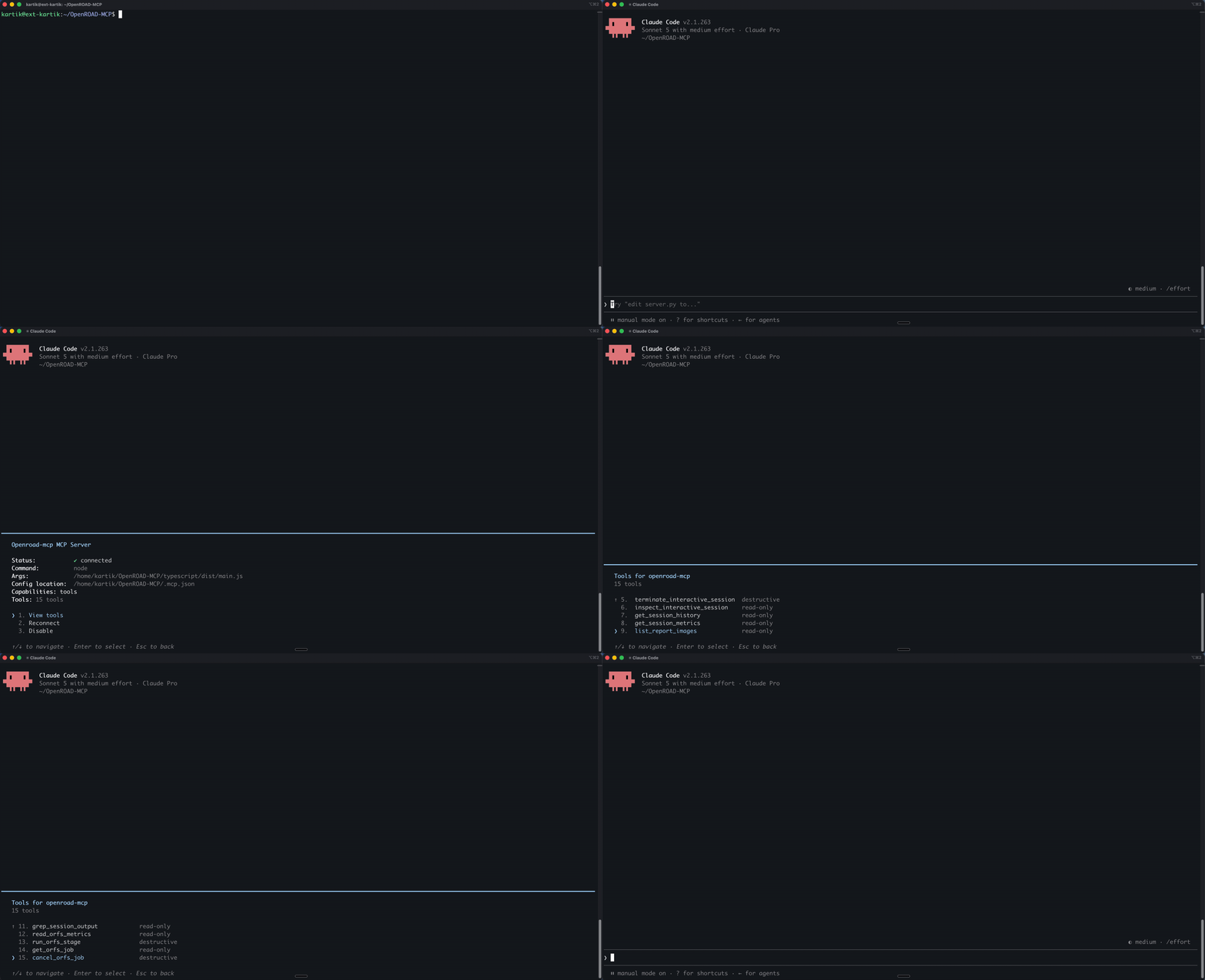
Demo
Requirements & Installation
To use this MCP server, you need the server runtime, plus the underlying OpenROAD layout tools.
1. Server Runtime
- Node.js 22+ is required to run the
npxdistribution.
2. OpenROAD
OpenROAD must be installed and available in your PATH.
3. OpenROAD-flow-scripts (ORFS)
ORFS is optional but highly recommended for complete RTL-to-GDS flows and report visualization.
Configuration
For platform-specific Node.js and C++ toolchain setup instructions, see the Cross-Platform Build Guide.
You do not need to clone this repo or pass path environment variables in the common case. The published npx package does not read a .env file.
On startup the server inherits the MCP client's environment, then fills PATH the same way which openroad would: current PATH, then your login-shell PATH, then common install locations (/opt/homebrew/bin, conda, local OpenROAD builds). ORFS_FLOW_PATH defaults to ~/OpenROAD-flow-scripts/flow, and is also detected when ORFS sits next to the openroad binary.
Supported MCP Clients
Here is the standard base configuration used across most clients:
{
  "command": "npx",
  "args": ["-y", "openroad-mcp"]
}
Find your specific client below for the exact configuration snippet and file location.
claude mcp add --transport stdio openroad-mcp -- npx -y openroad-mcp
Or add the standard config to .mcp.json / .claude/settings.json.
If a GUI-launched client still cannot find openroad, pass an override. Use command -v so you do not hard-code paths:
claude mcp add \
  --env PATH="$(dirname "$(command -v openroad)"):${PATH}" \
  --env ORFS_FLOW_PATH="${HOME}/OpenROAD-flow-scripts/flow" \
  --transport stdio openroad-mcp \
  -- npx -y openroad-mcp
Put --transport between --env and the server name so the CLI does not treat the name as another KEY=value pair.
Add the standard config to:
- macOS:
~/Library/Application Support/Claude/claude_desktop_config.json - Windows:
%APPDATA%\Claude\claude_desktop_config.json
Add the standard config to .cursor/mcp.json.
Add to .vscode/mcp.json. Requires "type": "stdio":
{
  "servers": {
    "openroad-mcp": {
      "type": "stdio",
      "command": "npx",
      "args": ["-y", "openroad-mcp"]
    }
  }
}
Add the standard config to ~/.codeium/windsurf/mcp_config.json.
Add the standard config to cline_mcp_settings.json (Cline) or .roo/mcp.json (Roo Code).
Add to your respective config.json under modelContextProtocolServers:
{
  "transport": {
    "type": "stdio",
    "command": "npx",
    "args": ["-y", "openroad-mcp"]
  }
}
Add to ~/.config/zed/settings.json:
{
  "context_servers": {
    "openroad-mcp": {
      "command": {
        "path": "npx",
        "args": ["-y", "openroad-mcp"]
      }
    }
  }
}
The server is available on the MCP Registry and via Docker:
docker run --rm -i ghcr.io/the-openroad-project/openroad-mcp:latest
Most other standard STDIO clients are fully supported. Refer to your tool's MCP setup guide.
Available Tools
Once configured, your AI assistant will have access to the following tools. For detailed parameters, schemas, and return formats, see the API Reference.
interactive_openroad_queryinteractive_openroad_execcreate_interactive_sessionlist_interactive_sessionsterminate_interactive_sessioninspect_interactive_sessionget_session_historyget_session_metricslist_report_imagesread_report_image
Troubleshooting
- The server fails to start: Ensure you have Node.js 22+. Older versions will fail.
- Session creation fails: Confirm
command -v openroadworks in a terminal. The server inherits PATH and searches common install locations; if your prefix is unusual, passPATHwith--envas shown in the Claude Code section. - Commands rejected with CommandBlocked: You sent a state-modifying command to
interactive_openroad_query. Useinteractive_openroad_execinstead. - Report images not found: The server defaults to
~/OpenROAD-flow-scripts/flow. If ORFS lives elsewhere, setORFS_FLOW_PATHin the MCP client'senvblock (not a.envfile).
To get more detail, set LOG_LEVEL=DEBUG in the server's environment.
Development
Clone the repository. .env.example is a local-dev reference only; copy it to .env if you use direnv or similar. The server still reads process.env (the MCP client's env block), not the file.
Then run:
cd typescript
npm install
npm run build
Testing:
npm run test             # unit tests
npm run test:integration # integration tests
npm run test:performance # performance benchmarks
Linting & type checking:
npm run typecheck
npm run lint
Contributing
We welcome contributions! Please see CONTRIBUTING.md for detailed instructions on our development workflow and code standards.
License
BSD 3-Clause License. See LICENSE file.
Built with ❤️ by Precision Innovations
Reviews
No reviews yet
Be the first to review this server!
More Developer Tools MCP Servers
Git
Freeby Modelcontextprotocol · Developer Tools
Read, search, and manipulate Git repositories programmatically
Fetch
Freeby Modelcontextprotocol · Developer Tools
Web content fetching and conversion for efficient LLM usage
Paperclip
Freeby Paperclipai · Developer Tools
Trending hip-hop artist momentum scores across four cultural dimensions.
Toleno
Freeby Toleno · Developer Tools
Toleno Network MCP Server — Manage your Toleno mining account with Claude AI using natural language.
mcp-creator-python
Freeby mcp-marketplace · Developer Tools
Create, build, and publish Python MCP servers to PyPI — conversationally.
MCP Marketplace
Freeby mcp-marketplace · Developer Tools
Search and install MCP servers from inside your AI client.