
Server data from the Official MCP Registry
Give AI tools access to your Mac clipboard history and pinboards from Paste. Runs locally.
About
Give AI tools access to your Mac clipboard history and pinboards from Paste. Runs locally.
Security Report
This is a well-engineered OAuth bridge for a local macOS clipboard application. The code implements proper OAuth 2.0 PKCE flow with strong security controls (loopback redirect validation, state CSRF tokens, secure token storage with 0o600 permissions). Minor areas for improvement include broader error handling and avoiding unsafe browser-opening patterns on non-macOS systems, but these do not constitute real vulnerabilities. Permissions are appropriate for the stated purpose. Supply chain analysis found 3 known vulnerabilities in dependencies (0 critical, 3 high severity). Package verification found 1 issue.
7 files analyzed · 9 issues found
Security scores are indicators to help you make informed decisions, not guarantees. Always review permissions before connecting any MCP server.
Permissions Required
This plugin requests these system permissions. Most are normal for its category.
How to Install
Add this to your MCP configuration file:
{
  "mcpServers": {
    "io-pasteapp-paste": {
      "args": [
        "-y",
        "@pasteapp/mcp"
      ],
      "command": "npx"
    }
  }
}Documentation
View on GitHubFrom the project's GitHub README.
Paste MCP



Local MCP server for Paste. Give Claude, Codex, Cursor, and other AI tools access to your Mac's clipboard history and pinboards — without anything leaving your device.
Your assistant can search your clipboard items, pull one into context, or save its output to a pinboard.
Install
Use add-mcp to connect Paste to all your installed AI apps:
npx add-mcp @pasteapp/mcp
The first time an app uses Paste, it'll ask you to authenticate and allow access.
Alternatively, connect Paste to each app manually:
Claude Code
claude mcp add paste -- npx -y @pasteapp/mcp
Codex
codex mcp add paste -- npx -y @pasteapp/mcp
Cursor

VS Code

Connect from Paste
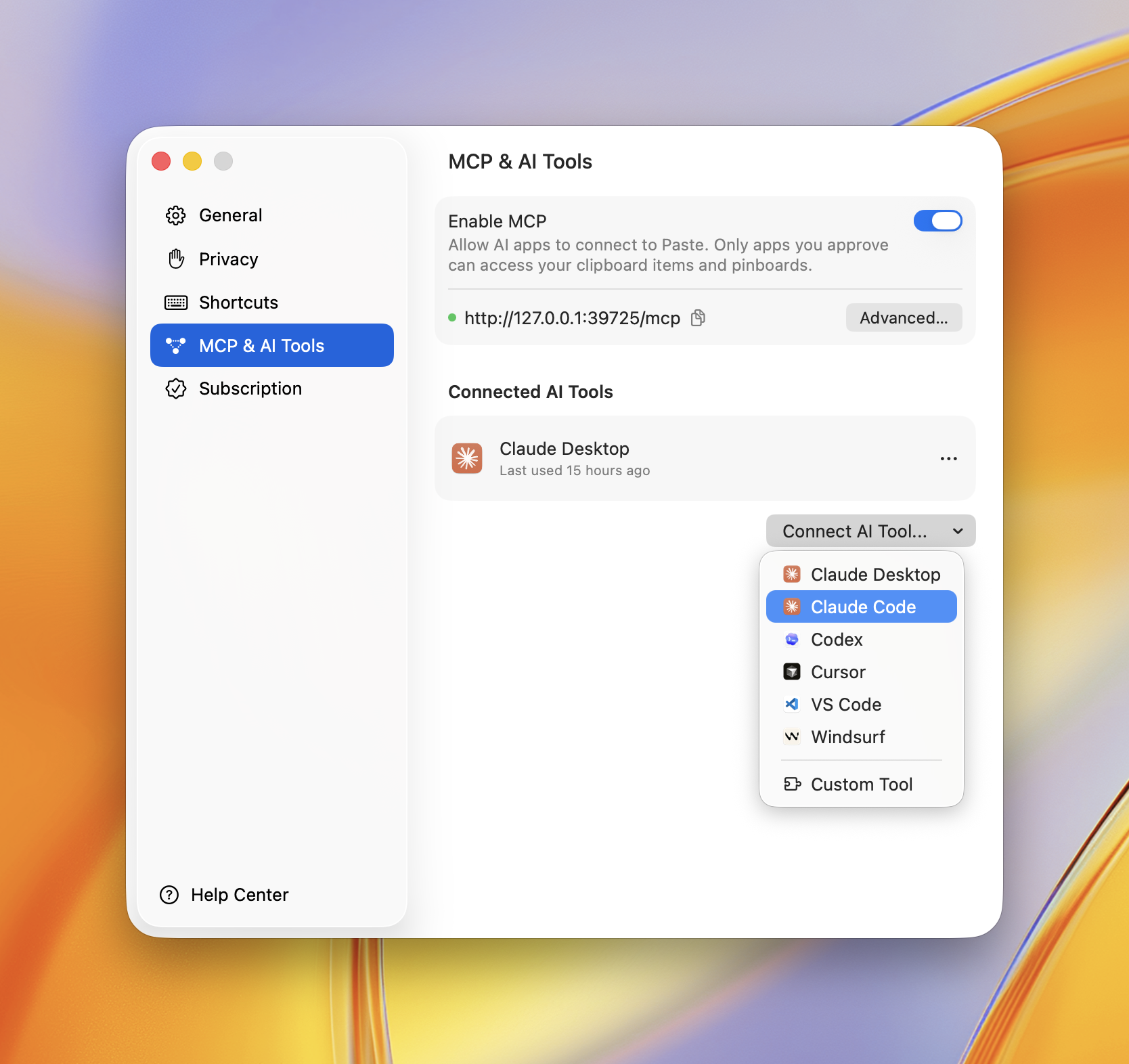
You can also connect any app right inside Paste. Open Settings → MCP & AI Tools, click Connect AI Tool, and choose your app — Paste does the rest.
Privacy Policy
Paste MCP runs locally on your Mac — it bridges your AI app to Paste's on-device server and sends nothing to Paste's own servers. Your clipboard items only reach the AI apps you approve, and you can revoke access anytime in Settings → MCP & AI Tools.
Full policy — what data is processed, how it's stored, sharing, retention, and contact: https://pasteapp.io/privacy.
Troubleshooting
The AI tool says Paste isn't available. Make sure Paste is running and MCP is enabled in Settings → MCP & AI Tools.
Tools don't show up after connecting. Fully quit and reopen your AI app so it relaunches the server.
npx errors or "command not found".
Confirm Node.js 18+ is installed: node --version.
Requirements
Contributing
Issues and pull requests welcome — see the issue tracker.
License
Reviews
No reviews yet
Be the first to review this server!
More Developer Tools MCP Servers
Git
Freeby Modelcontextprotocol · Developer Tools
Read, search, and manipulate Git repositories programmatically
Fetch
Freeby Modelcontextprotocol · Developer Tools
Web content fetching and conversion for efficient LLM usage
Paperclip
Freeby Paperclipai · Developer Tools
Trending hip-hop artist momentum scores across four cultural dimensions.
Toleno
Freeby Toleno · Developer Tools
Toleno Network MCP Server — Manage your Toleno mining account with Claude AI using natural language.
mcp-creator-python
Freeby mcp-marketplace · Developer Tools
Create, build, and publish Python MCP servers to PyPI — conversationally.
MCP Marketplace
Freeby mcp-marketplace · Developer Tools
Search and install MCP servers from inside your AI client.